
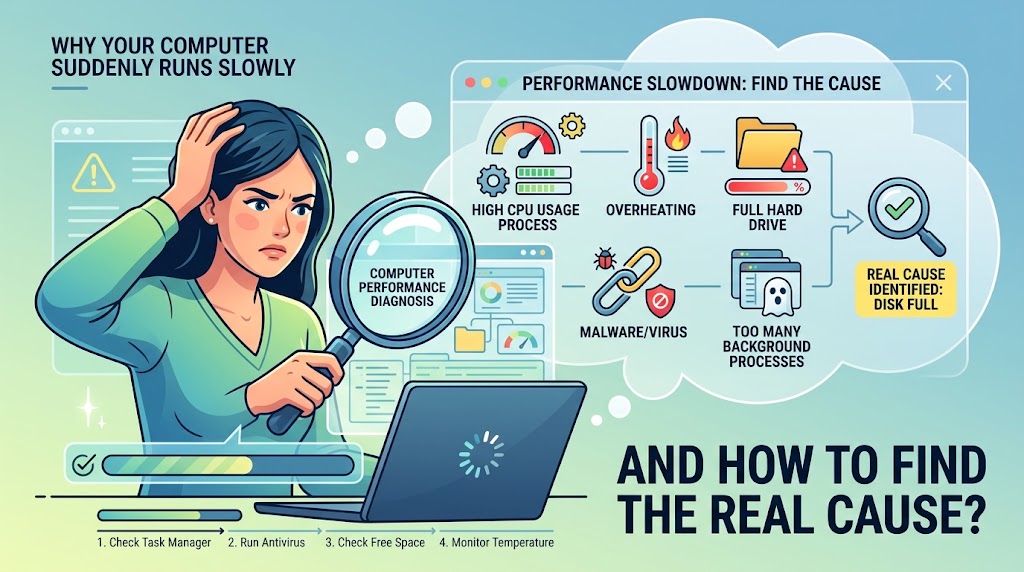
A computer that suddenly becomes slow can be frustrating because the symptom does not tell you what is actually wrong.
You may notice that programs take longer to open, the mouse briefly freezes, websites become sluggish, files take longer to load, or the computer takes several minutes to become usable after startup. It is tempting to immediately delete files, install a “PC cleaner,” disable random services, or assume the computer has reached the end of its life.
Those actions can sometimes make things worse.
A better approach is to treat the slowdown like a troubleshooting problem. First determine when the computer becomes slow, what is being used heavily, and whether the problem affects everything or only one task. Then make the smallest useful change and check whether the behavior improves.
Microsoft identifies several possible causes of poor Windows performance, including limited storage, startup applications, outdated software, malware, and hardware that may no longer meet current demands.
Apple similarly recommends checking storage and memory when a Mac becomes slow, while Activity Monitor can show which processes are consuming CPU, memory, disk, or other resources.
The goal is not simply to make your computer “feel faster.” The goal is to find the reason it slowed down.
Start by Describing Exactly What Became Slow
Before changing anything, describe the problem as specifically as possible.
Is the computer slow immediately after turning it on? Does it become slow after 20 or 30 minutes? Does opening a browser cause the problem? Does everything become sluggish when you open a large spreadsheet or video editor? Is only one application affected?
These details matter.
A computer that is slow from the moment you sign in points toward a different group of causes than a computer that works normally until you open a particular application.
For example, if the desktop takes several minutes to become responsive after startup, background applications, startup programs, updates, storage activity, or hardware problems are worth investigating.
If the entire computer becomes slow only when you open a demanding application, the application may simply be consuming a large amount of CPU or memory.
If websites are slow but locally installed applications work normally, the computer itself may not be the main problem at all. The issue could involve the browser, network connection, website, extension, or another internet-related factor.
This first distinction can save you from changing settings that were never responsible for the problem.
Check Whether the Problem Is Still Happening
A temporary slowdown is different from a persistent performance problem.
If the computer became slow once while installing an update, scanning files, synchronizing cloud storage, importing photos, or performing another large task, the heavy activity may explain the behavior.
Restart the computer and observe what happens afterward.
Do not use the restart as your entire troubleshooting strategy, though. A restart can clear temporary conditions without explaining what caused them.
After restarting, give the computer a few minutes to settle. Then open the applications you normally use and see whether the slowdown returns.
If the computer is immediately responsive after restarting but becomes slow again whenever a particular program starts, that is useful evidence.
If it remains slow even before you open anything, look at system resource usage next.
On Windows, Use Task Manager Before Guessing
Windows has a built-in tool that can tell you much more than simply saying “the computer is slow.”
Press Ctrl + Shift + Esc to open Task Manager.
Microsoft describes Task Manager as a system monitor that can show CPU, memory, disk, and network activity. It can also help you manage startup applications.
Start with the Processes tab.
Look at CPU, Memory, Disk, and Network usage while the computer is experiencing the slowdown.
The important question is not simply whether a percentage looks high. Ask which process is responsible.
If one application is consuming most of the CPU, close that application if it is safe to do so and see whether the computer becomes responsive again.
If memory usage is very high, look at which applications are consuming the most memory. A large number of browser tabs, creative applications, virtual machines, games, or other demanding programs can put substantial pressure on available memory.
If Disk usage remains very high, investigate what is performing the disk activity instead of assuming that the storage drive itself is defective.
If network usage is high, a cloud-sync application, download, update, backup, or other network-heavy process may be responsible.
Microsoft specifically recommends using Task Manager to monitor resource usage and identify heavy processes when troubleshooting Windows performance.
Do Not Assume 100% CPU Means the Processor Is Broken
High CPU usage means something is asking the processor to do a lot of work. It does not automatically mean the processor is failing.
A demanding application can legitimately use substantial CPU resources.
The useful question is whether the high usage matches something you intentionally started.
For example, high CPU usage while exporting a video is very different from high CPU usage while the computer is sitting at the desktop with nothing apparently running.
If an unfamiliar process repeatedly consumes large amounts of CPU, investigate the process before ending it or deleting associated files.
Do not randomly terminate Windows system processes simply because their names look unfamiliar. Some are essential to the operating system.
High Memory Usage Requires a Different Investigation
Memory problems can feel similar to CPU problems, but the cause may be different.
If you have several applications open at once, start closing them one at a time and observe whether performance improves.
Browser tabs deserve special attention. A browser session containing dozens of tabs, web applications, extensions, video streams, and background pages can consume significant resources.
You should also watch for a particular application whose memory usage keeps increasing during normal use.
If closing one application immediately makes the computer responsive again, you have useful evidence. You can then check whether the application has an update, whether a browser extension is involved, or whether the program has known system requirements that your computer no longer comfortably meets.
On a Mac, Apple provides similar visibility through Activity Monitor. It can show memory use and help identify applications or processes contributing to sluggish behavior.
Check Storage Before You Start Deleting Random Files
Low storage space can affect performance, and both Microsoft and Apple recommend checking available storage when troubleshooting a slow computer.
On Windows, open Settings > System > Storage.
Windows provides a breakdown of storage categories such as installed applications, temporary files, and system-related storage.
The important part is to identify what is consuming the space.
You may discover that the problem is not temporary files at all. Large videos, downloads, games, old installers, virtual-machine files, cloud-sync folders, or application data may be responsible.
Do not start deleting large folders simply because they look unnecessary.
Check what the files are first. If they are important, move or back them up rather than treating storage cleanup as a deletion contest.
If the drive is nearly full, creating some breathing room may help. Microsoft notes that running out of storage can contribute to slower performance and problems installing updates.
Check Startup Apps if the Computer Is Slow After Every Boot
If your computer takes a long time to become usable after startup, examine what launches automatically.
On Windows, open Task Manager and select Startup apps.
You may find programs that you installed months or years ago and forgot were configured to start with Windows.
Some startup applications are useful. Others may not need to launch every time you turn on the computer.
Microsoft recommends disabling unnecessary startup applications because they can increase startup time and background activity.
Be careful here.
Do not disable everything simply to make the list look clean. If you do not recognize an item, investigate it first. Some startup components belong to hardware drivers, security software, synchronization tools, or applications you rely on.
Disable one or two clearly unnecessary items, restart, and compare the result.
That gives you useful evidence without changing dozens of variables at once.
Test Whether a Background Program Is the Real Cause
Sometimes the computer becomes slow because of software that starts automatically rather than because of Windows itself.
Windows Safe Mode can help narrow this down because it starts the operating system with a limited set of drivers and services. If the problem disappears in Safe Mode, software or startup components become stronger suspects.
Windows also provides a clean-boot process for isolating problematic startup applications and services. Microsoft recommends keeping track of changes and systematically re-enabling items rather than permanently disabling random system components.
This is more useful than installing a third-party “optimizer” and hoping it identifies the problem for you.
A controlled test tells you something.
Random cleanup usually does not.
Consider Updates and Background Work
A computer can become temporarily slow while it is performing legitimate background work.
Examples include operating-system updates, application updates, cloud synchronization, indexing, antivirus scans, photo processing, backups, and large file transfers.
If you recently installed a major update or connected a large folder to a synchronization service, observe whether the slowdown continues after that work finishes.
Windows Update should also be checked when troubleshooting performance. Microsoft notes that updates can include fixes and performance improvements.
The same principle applies to applications.
If the slowdown started immediately after updating one particular program, that timing is worth noting. It does not prove the update caused the problem, but it gives you a useful direction for further investigation.
Do Not Ignore Heat and Fan Behavior
A computer that becomes slower after running for a while may have a different problem from one that is slow immediately after startup.
Pay attention to heat and fan behavior.
If the fans become unusually loud and performance drops during demanding tasks, temperature may be part of the picture.
This does not automatically mean you need to open the computer and clean it yourself.
Instead, look for patterns.
Does the slowdown happen during gaming? Video editing? Charging? Warm weather? Heavy multitasking? Does the computer become responsive again after it has cooled down?
A consistent relationship between heat and reduced performance is useful evidence.
If you also notice unexpected shutdowns, graphical problems, burning smells, unusual noises, or repeated hardware errors, stop treating the issue as a simple software-cleanup problem and consider professional hardware diagnosis.
Run a Security Check if the Slowdown Is Unexplained
Malware can consume CPU, disk, memory, or network resources.
Microsoft specifically includes malware scanning among its recommended steps for slow Windows PCs.
On Windows, you can use the built-in Windows Security application and run a malware scan.
This is particularly important if the slowdown appeared together with other unusual behavior, such as unfamiliar applications, unexpected browser changes, repeated pop-ups, unknown extensions, or unexplained network activity.
Do not download several random “PC security” programs because you are worried about malware. Multiple security products can introduce their own conflicts and background activity.
Start with the security tools already provided by your operating system.
If Only One Program Is Slow, Troubleshoot That Program
Sometimes the computer is not slow.
One application is.
This distinction is easy to miss.
If your browser is slow but File Explorer and other applications respond normally, investigate the browser.
If one video editor becomes unresponsive while everything else works normally, investigate the editor.
If one accounting application takes several minutes to load a file while the rest of the system is responsive, the application or its data may be the problem.
For Windows applications, some programs provide a Repair option through Settings > Apps > Installed apps > Advanced options. Microsoft notes that repair availability depends on the application.
Before resetting or reinstalling software, check whether you have important local settings, templates, databases, or unsaved files that could be affected.
Try a Simple Comparison Test
One of the most useful troubleshooting techniques is to change only one variable.
Suppose the computer becomes slow whenever you open a particular browser.
Close the browser.
Does the computer become responsive?
If yes, reopen it without restoring all your previous tabs.
Is it still slow?
If not, reopen some tabs gradually.
You are now testing a hypothesis rather than guessing.
The same technique works with startup applications, cloud-sync tools, games, office programs, and external devices.
A good troubleshooting sequence looks like this:
Observe → change one thing → reproduce the problem → compare the result.
This takes longer than clicking a “one-click optimizer,” but the information you gain is much more valuable.
Use Safe Mode or Clean Boot When Normal Windows Is Hard to Diagnose
If normal startup makes the computer slow but the system behaves normally in a minimal environment, background software becomes a stronger suspect.
Windows Safe Mode is designed specifically to start with a limited set of drivers and services, which can help eliminate certain software-related causes.
A clean boot can go further by helping you isolate startup applications and services systematically. Microsoft recommends restoring normal startup settings after testing rather than leaving the computer permanently configured for troubleshooting.
Do not change advanced services casually.
If you are unsure what a Windows service does, leave it alone until you have a reason to investigate it.
Mac Users Have a Similar Diagnostic Path
If you use a Mac, open Activity Monitor when the computer is slow.
Apple’s Activity Monitor can show CPU, memory, disk, network, and energy activity. It can also help you identify an unresponsive process.
For storage, Apple recommends checking System Settings > General > Storage and reviewing the categories consuming space.
If the slowdown appears to be connected to software that loads during startup, macOS Safe Mode can help determine whether startup-loaded software is involved. Apple specifically describes Safe Mode as a way to identify whether startup-loaded software is contributing to problems.
The same diagnostic principle applies: observe the behavior, reduce variables, and compare.
Know When the Hardware May Simply Be Too Old
Not every slow computer can be fixed with software.
If the computer has consistently struggled with applications that used to work comfortably, the hardware may no longer be adequate for your current workload.
Microsoft lists persistent high CPU, memory, or disk usage, long startup times, low storage, frequent errors, and declining performance as signs that an older PC may need more substantial attention or replacement.
Before buying a new computer, though, identify the limitation.
A computer with insufficient memory has a different upgrade path from one with an aging storage drive. A system that is overheating has a different problem from one whose processor simply cannot keep up with modern applications.
If the machine has an older mechanical hard drive, moving to a solid-state drive can make a substantial difference in everyday responsiveness, depending on the system and workload.
If the computer already has an SSD and plenty of memory, replacing the drive alone may not solve the problem.
The diagnosis should come before the purchase.
Avoid These “Fixes” Until You Know the Cause
Be careful with advice that tells you to immediately make sweeping changes.
Do not delete Windows system folders because someone online says they are “junk.”
Do not disable dozens of services.
Do not install several registry cleaners.
Do not download an unknown driver-updater program simply because the computer feels slow.
Do not clear browser data without understanding what will be removed.
Do not reset Windows or macOS before confirming that important files are backed up.
And do not assume that a factory reset is the correct answer simply because it often makes a computer feel faster temporarily.
Microsoft’s recovery guidance places less disruptive recovery options before more consequential ones and warns that some recovery choices can result in data loss. Back up important files before using those options.
A reset may eventually be appropriate, but it should be the result of troubleshooting rather than the first reaction.
A Simple Way to Find the Real Cause
If you want a practical sequence to follow, use this order.
First, restart the computer and see whether the problem returns.
Next, determine whether everything is slow or only one application.
Then check CPU, memory, disk, and network activity while the slowdown is actually happening.
After that, check available storage.
If startup is the problem, review startup applications.
If the problem appears after a particular application launches, test that application separately.
If the computer becomes slow only after running for a while, investigate heat, background tasks, memory usage, and long-running processes.
If the cause remains unclear, use Safe Mode or a clean-boot approach to determine whether startup software is involved.
Finally, consider hardware age or failure if software explanations no longer fit the evidence.
This sequence is useful because every stage gives you information for the next one.
Final Thoughts
A slow computer is not a diagnosis. It is a symptom.
The same sluggish behavior can come from a memory-heavy application, a nearly full drive, excessive startup software, background synchronization, malware, overheating, an application problem, an operating-system issue, or hardware that has reached its practical limits.
That is why the best first step is not downloading a cleaner.
It is finding out what the computer is actually doing when it becomes slow.
On Windows, Task Manager gives you a useful starting point for CPU, memory, disk, network, and startup activity. On Mac, Activity Monitor provides similar visibility. Storage tools can reveal whether limited space is part of the problem, while Safe Mode or clean-boot testing can help separate operating-system problems from software that loads in the background.
Once you identify the bottleneck, the solution usually becomes much clearer.
And if you cannot identify one, that is useful information too. It tells you to stop making random changes and consider a deeper software or hardware diagnosis.
Sources and Further Reading
- Microsoft: Tips to improve PC performance in Windows
- Microsoft: System configuration tools in Windows
- Microsoft: Free up drive space in Windows
- Microsoft: Storage settings in Windows
- Microsoft: How to perform a clean boot in Windows
- Apple: Activity Monitor User Guide for Mac
- Apple: If your Mac runs slowly
- Apple: Start up your Mac in safe mode
Frequently Asked Questions
Why did my computer suddenly become slow?
A sudden slowdown can be caused by a background process, software update, startup application, low storage, demanding application, malware, overheating, or a hardware problem. Check resource usage while the slowdown is happening instead of assuming one specific cause.
How can I tell what is making my Windows computer slow?
Open Task Manager with Ctrl + Shift + Esc and check CPU, Memory, Disk, and Network usage. Look for the process responsible for unusually high activity while the computer is actually slow.
Can low storage make a computer slow?
Yes. Very limited free storage can contribute to performance and update problems. Windows provides Storage settings that show how space is being used, making it easier to identify what needs attention.
Should I disable all startup programs to make my computer faster?
No. Disable only startup applications you understand and do not need running automatically. Some startup components are important for hardware, security, synchronization, or other software functions.
Does a slow computer always mean I need more RAM?
No. High memory usage is only one possible cause. CPU-heavy applications, disk activity, low storage, software problems, overheating, and aging hardware can all produce similar symptoms.
When should I consider replacing my computer?
Consider replacement or a hardware upgrade when troubleshooting consistently shows that the existing hardware cannot comfortably handle your normal workload, especially if the computer is old, repeatedly reports hardware-related problems, has persistent performance limitations, or cannot keep up with current software requirements.