
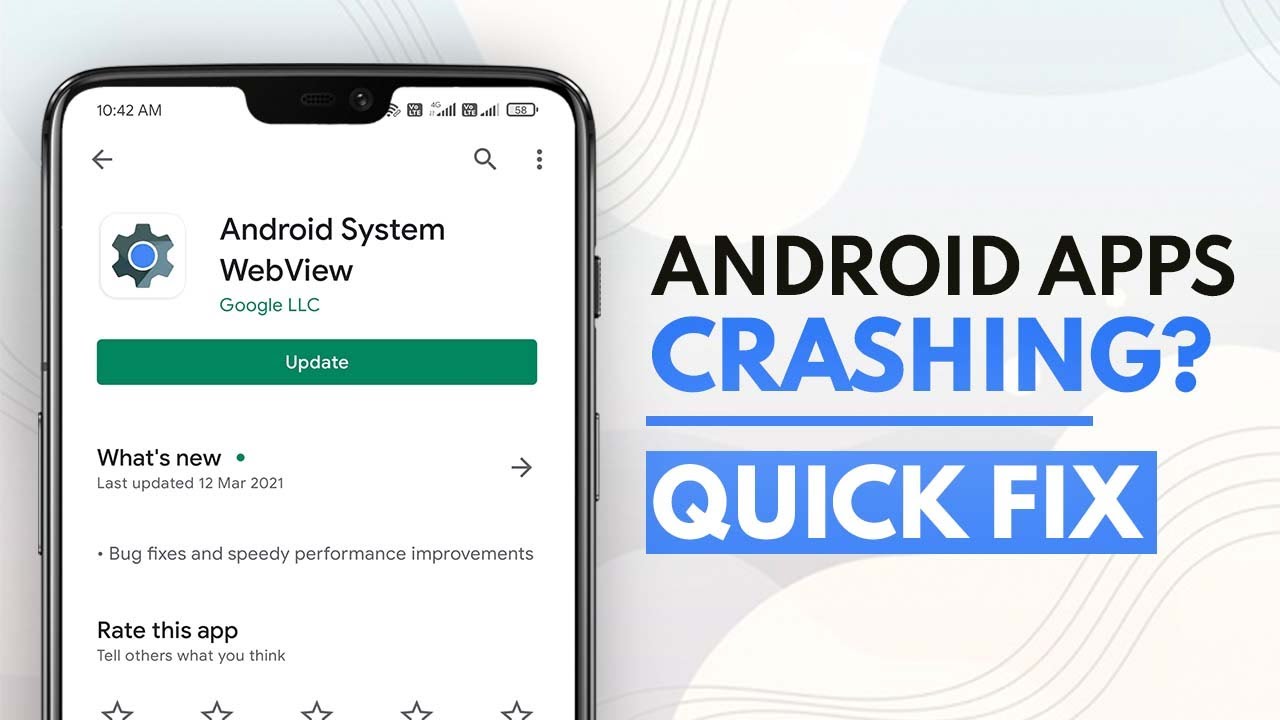
An Android app that suddenly closes can be annoying, especially when it happens repeatedly or only when you try to perform a particular task.
The problem can have several causes. The app may be outdated, its temporary data may be corrupted, the phone may be running low on storage, Android may have encountered a temporary problem, or the app itself may have a compatibility or stability issue.
The important thing is to troubleshoot the problem in the right order.
You do not normally need to reset your phone or delete all of your app data just because one application keeps closing.
This guide explains how to identify the cause, apply safer fixes first, and determine when the problem is specific to one app or affects Android more broadly.
What Does It Mean When an Android App Keeps Closing?
There are several different situations that can look like an app crash.
An app might:
- Close immediately after opening.
- Freeze and then disappear.
- Close when you open a particular screen.
- Close when uploading or downloading something.
- Close when using the camera, microphone, or location.
- Work normally for a while and then close.
- Close only when the phone is under heavy load.
- Stop responding after an Android or app update.
These differences matter.
If only one application is affected, investigate that app first.
If many unrelated apps are closing, the problem may involve Android, storage, system software, or another shared component.
First: Identify Whether One App or Several Apps Are Affected
Before changing anything, test a few other applications.
For example, if your banking app closes, open your browser, camera, calculator, and another ordinary app.
If only one app closes
The problem is more likely related to:
- The app itself
- Its cached data
- Its permissions
- An app update
- Compatibility
- Account or app-specific data
If several apps close
Look more closely at:
- Available storage
- Android updates
- System components
- Recently installed software
- Device stability
- Broader system problems
This simple test can prevent you from changing settings that have nothing to do with the original problem.
Step 1: Restart Your Android Phone
Start with a normal restart.
Press and hold the phone’s power button, then choose Restart if the option is available.
A restart can clear temporary software states and background processes that may have become stuck.
After the phone restarts:
- Unlock it.
- Wait for the system to finish loading.
- Open the affected app.
- Test the same action that previously caused it to close.
If the app works normally after restarting, continue using it for a while.
If it starts closing again, move to the next checks.
Step 2: Check How Much Storage Is Available
Low storage can create problems beyond simply preventing new files from being saved.
Open your phone’s storage settings. Depending on the manufacturer and Android version, this may be found under:
Settings → Storage
Samsung devices may use a path such as:
Settings → Battery and device care → Storage
Check how much free space remains.
If storage is nearly full, remove unnecessary files before troubleshooting the app further.
Start with files you can safely identify, such as:
- Old downloads
- Unwanted videos
- Duplicate files
- Offline content
- Unused apps
- Large files you have already backed up
If your phone is full of photos that you want to keep, do not start deleting them randomly. Our guide on freeing up Android storage without deleting important photos explains a safer cleanup process.
After freeing some space, restart the phone and test the app again.
Step 3: Update the Problem App
An outdated app may contain a bug that has already been fixed by its developer.
Open the Google Play Store and search for the affected app.
If an Update button is available, install the update.
After updating:
- Close the app.
- Restart the phone if appropriate.
- Open the app again.
- Repeat the action that previously caused the crash.
If the problem started immediately after an app update, that is also useful information.
In that situation, check the app’s Play Store listing for information about the current release and look for other reports of the same issue.
Step 4: Update Android
The app may be current while the phone’s system software is not.
Open:
Settings → System → Software update
The exact menu name varies by manufacturer.
On some phones, you may see System update or a similar option.
Install available system updates when appropriate, then restart the phone and test the app again.
Android updates can include system fixes and compatibility improvements, so checking the operating system is an important part of troubleshooting repeated app crashes.
Step 5: Check Google Play System Updates
Android devices can also receive Google Play system updates separately from the main Android version.
On supported devices, look for an option similar to:
Settings → Security & privacy → System & updates → Google Play system update
The exact path varies by Android version and manufacturer.
If an update is available, install it and restart the phone.
If you cannot find this setting, use your phone’s Settings search and search for:
Google Play system update
Step 6: Force Stop the App
If the app appears to be stuck, you can force it to stop and then reopen it.
The usual path is similar to:
Settings → Apps → [App name] → Force stop
Confirm the action if Android asks.
Then open the application again.
This does not uninstall the app.
It simply stops its current process so Android can start it again.
If the application keeps closing immediately afterward, continue troubleshooting instead of repeatedly force-stopping it.
Step 7: Clear the App’s Cache
Temporary cached files can occasionally become problematic.
Go to:
Settings → Apps → [App name] → Storage
Look for:
Clear cache
The wording and menu arrangement can vary by phone.
Clearing cache is generally less disruptive than clearing the app’s stored data.
After clearing the cache:
- Open the app.
- Sign in if required.
- Repeat the action that caused the crash.
- Check whether the problem returns.
The first launch may behave differently because the app needs to recreate temporary files.
Do Not Confuse “Clear Cache” With “Clear Storage”
This distinction is important.
Clear cache
Removes temporary cached data.
Clear storage / Clear data
Can remove locally stored app information and reset the app.
Depending on the application, clearing stored data may mean that you need to:
- Sign in again.
- Reconfigure settings.
- Redownload offline content.
- Restore data from a backup.
Do not use Clear storage simply because the app keeps closing.
First determine whether you actually need to reset the application.
Step 8: Check the App’s Permissions
Some applications depend on permissions for specific functions.
For example, a camera application may need camera access, while a navigation application may require location access for certain features.
You can review permissions through a path similar to:
Settings → Apps → [App name] → Permissions
Check whether an important permission was recently changed.
Do not grant every permission simply to stop a crash.
Only allow permissions that are appropriate for the application’s features and your use of it.
If the app closes only when using a particular feature, pay special attention to permissions related to that feature.
Step 9: Check Whether Battery Restrictions Are Affecting the App
Android devices can restrict background activity to reduce power consumption.
Depending on your phone, battery controls may be found under:
Settings → Apps → [App name] → App battery usage
or through a similar battery-management section.
If the application needs to perform background tasks and is being heavily restricted, its behavior may change.
However, do not disable battery protections for every app.
If the problem only happens while the app is running in the foreground, battery restrictions may not be the primary cause.
Use this setting based on the app’s actual behavior.
Step 10: Check for an App-Specific Problem
Sometimes the phone is working correctly and the application itself is the problem.
Look at the app’s Play Store listing.
Pay attention to:
- Recent update timing
- Developer notices
- User reports
- Required Android version
- Known compatibility information
If many users report the same crash after a particular update, that is useful evidence that the issue may be app-specific.
In that situation, repeatedly changing your phone’s system settings is unlikely to be the right first move.
Step 11: Test the App After Closing Other Apps
If your phone has many applications running, temporarily close unnecessary ones.
Then open the problem app again.
This is especially useful if the app is large or performs demanding work.
Also check Settings → Battery or your device’s battery information if it provides app activity details.
You are looking for a pattern:
Other apps closed → problem disappears
or:
Other apps closed → problem remains
This does not prove that another application caused the crash, but it gives you useful diagnostic information.
Step 12: Check Whether Your Phone Is Overheating
An overheated phone can behave differently from a phone operating under normal conditions.
If the app closes while the phone is unusually hot, first allow the device to cool down.
Remove unnecessary workload and avoid placing the phone in direct heat.
If your phone frequently overheats, investigate that separately.
Our guide on phone overheating in summer and how to cool down an iPhone or Android covers additional checks.
Do not assume that overheating is the cause simply because the phone feels warm. Look for a repeatable connection between temperature and the crash.
Step 13: Check Your Internet Connection If the App Requires It
Some apps may appear to crash when they encounter a network problem.
This can happen with applications that depend heavily on online services.
Test the app on:
- Wi-Fi
- Mobile data
If it works on one connection but repeatedly fails on another, investigate the network rather than immediately resetting the app.
You can also restart the network connection and test again.
If other apps have similar connection problems, the issue is less likely to be specific to the affected app.
Step 14: Remove Recently Installed or Updated Apps as a Test
If several apps started closing around the same time, think about what changed immediately beforehand.
Possible changes include:
- A new application
- A system update
- A major app update
- A security application
- A launcher change
- A device-management tool
You do not need to uninstall everything.
Start with the most recent change that clearly matches the beginning of the problem.
If removing a recently installed application resolves the issue, you have useful evidence about the cause.
Step 15: Reinstall the Problem App
If the app still closes after updates, restarting, cache clearing, and other basic checks, reinstalling it may help.
Before uninstalling, determine whether the app stores important information locally.
For example, some apps synchronize data with an account, while others may store content only on the device.
If your data is synchronized or backed up, uninstall the app and install it again from the Google Play Store.
Then sign in and test it.
If the app still closes immediately after a clean installation, the problem may be related to compatibility, the app’s current release, Android itself, or your particular device.
Step 16: Check the App on Another Device if Possible
If you have access to another compatible Android device, testing the same account or application can provide another useful clue.
App fails on both devices
The problem may involve:
- The app
- Your account
- A service-side issue
- A current application release
App works on another device
The problem may be specific to:
- Your phone
- Android version
- Device configuration
- Local app data
- Hardware or system components
This is not a perfect test, but it can narrow the possibilities.
What If Every App Keeps Closing?
If unrelated applications are crashing, stop treating the problem as an individual app problem.
Check:
- Available storage.
- Android system updates.
- Google Play system updates.
- Recently installed applications.
- Device temperature.
- General phone stability.
If the problem started after a system change, document exactly what changed.
If crashes continue across multiple applications, contact your phone manufacturer’s support service before performing destructive troubleshooting.
When You Should Consider a Factory Reset
A factory reset should not be the first solution for one crashing application.
It removes data from the device and requires you to set up the phone again.
Consider it only after less destructive troubleshooting has failed and you have:
- Backed up important data.
- Confirmed your account credentials.
- Checked system updates.
- Investigated multiple-app crashes.
- Considered recently installed software.
- Followed manufacturer troubleshooting guidance.
If only one application is affected, a factory reset is usually a much bigger step than necessary.
What Not to Do
Avoid these common troubleshooting mistakes.
Do not clear data immediately
You may remove locally stored app information without fixing the underlying problem.
Do not install random “RAM cleaner” apps
Adding another background application can make troubleshooting harder.
Do not download APK files from unknown websites
If the application is available through Google Play, use the official store whenever possible.
Do not grant every permission
Permissions should match what the app actually needs.
Do not repeatedly restart without investigating
A restart is useful, but recurring crashes require finding the pattern.
Do not factory-reset the phone as your first step
Reserve destructive troubleshooting for situations where simpler methods have failed.
A Simple Android App Crash Decision Tree
Use this sequence when an app keeps closing:
One app closes →
Restart the phone.
→ Still closing?
Check storage.
→ Storage is very low?
Free some space and test again.
→ Storage is fine?
Update the app and Android.
→ Still closing?
Force stop the app and clear its cache.
→ Still closing?
Check permissions and app-specific settings.
→ Problem started after an update?
Check the app’s current release and reports.
→ Still closing?
Reinstall the app after protecting important data.
Several unrelated apps close →
Check storage, Android updates, Google Play system updates, recent changes, overheating, and overall system stability.
How to Verify That the Problem Is Fixed
Do not simply open the app once and assume the problem is gone.
Repeat the action that previously caused the crash.
For example:
- If it closed when opening a specific screen, open that screen.
- If it crashed while uploading, perform another upload.
- If it closed while using the camera, test the camera function again.
- If it failed after several minutes, use it for a similar amount of time.
A real fix should survive the condition that originally triggered the problem.
Keep Track of What Changed
When troubleshooting, change one major thing at a time whenever practical.
For example:
Restart → test
If it still fails:
Update app → test
If it still fails:
Clear cache → test
If you change ten settings simultaneously, you may never know which change mattered.
A simple troubleshooting record can save time:
| Change | Result |
|---|---|
| Restarted phone | Still crashes |
| Updated app | Still crashes |
| Cleared cache | Works normally |
| Tested again | No crash |
This turns random troubleshooting into a repeatable process.
When to Contact the App Developer or Phone Manufacturer
Contact support when:
- One application consistently crashes after a clean reinstall.
- Several applications are crashing.
- The issue started immediately after a system update.
- The phone is restarting or shutting down.
- The device becomes unusually hot.
- Storage reports appear incorrect.
- The problem occurs across normal phone functions.
When contacting support, provide useful details:
- Phone model
- Android version
- App name
- App version
- What you were doing when it crashed
- Whether other apps are affected
- When the problem started
- What troubleshooting steps you already tried
This gives support a much clearer starting point.
Final Takeaway
An Android app that keeps closing does not automatically mean your phone is failing.
Start by determining whether one app or several apps are affected. Then check storage, restart the phone, update the app and Android, force-stop the application, clear its cache, review permissions, and investigate recent changes.
If the problem remains, reinstall the application after protecting important data.
For repeated crashes across multiple apps, broaden the investigation to Android itself, storage, system updates, overheating, and recent software changes.
Most importantly, change one thing at a time and retest the exact action that caused the crash. That makes it much easier to identify the real cause instead of simply trying random fixes.
Frequently Asked Questions
Why do my Android apps keep closing by themselves?
Possible causes include an outdated app, corrupted temporary data, low storage, compatibility problems, system software issues, or an application-specific bug. Start by checking whether one app or multiple apps are affected.
Will clearing an app’s cache delete my account?
Clearing cache normally removes temporary cached files rather than resetting the entire application. However, Clear storage or Clear data can have a much bigger effect and may require you to sign in again.
Should I uninstall an app if it keeps crashing?
Reinstalling can help when an app’s local installation or data has become problematic. Before uninstalling, make sure important information stored inside the app is synchronized or backed up.
Why do several Android apps keep crashing?
When multiple unrelated apps close, investigate the phone rather than focusing on one application. Check available storage, Android updates, Google Play system updates, recent software changes, overheating, and overall system stability.
Will a factory reset fix Android app crashes?
A factory reset can resolve some persistent software problems, but it is a major step that removes data from the device. It should generally be considered only after less destructive troubleshooting has failed and your important data has been backed up.