
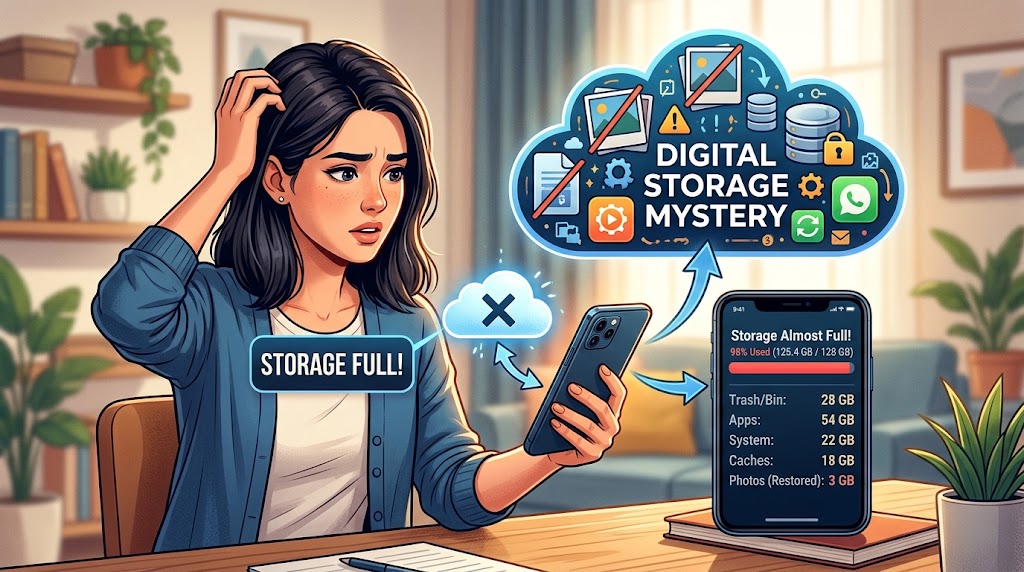
You delete hundreds of photos and videos, open your phone’s storage settings, and expect to see a big drop.
Instead, almost nothing changes.
Sometimes the storage number even seems to increase again a few days later.
It is easy to assume that Android is malfunctioning. In many cases, though, the phone is simply storing data somewhere you did not check.
A deleted photo may still be sitting in a Trash or Recycle Bin. A second copy may exist in a messaging folder. A video may have been downloaded by another app. Your gallery may show cloud-backed-up photos that are no longer stored locally. Or the storage number may simply not have updated immediately.
There is another important distinction: phone storage and cloud storage are not the same thing.
Android uses local storage for things such as photos, videos, apps, downloads, and other files. Google Photos uses cloud storage for backed-up content, which is part of your Google Account storage.
Before deleting more files, find out where your storage is actually going.
First, Check What Android Says Is Using the Space
Start with the phone itself.
Open Settings → Storage or search for Storage in Settings.
The exact menu varies between Android manufacturers and versions. Google recommends using the Storage section to identify which categories are consuming space.
Do not begin deleting anything yet.
Look at the categories.
You might see:
- Apps
- Images
- Videos
- Audio
- Documents
- Downloads
- System
- Other
The names can vary.
The important question is:
Did the category containing your photos and videos actually become smaller?
If you deleted 5 GB of videos but the storage screen still shows roughly the same amount of video or image data, something needs further investigation.
If Images and Videos dropped significantly but the phone is still nearly full, the problem may simply be somewhere else.
That distinction saves a lot of unnecessary deleting.
Understand the Difference Between Phone Storage and Google Photos Storage
This causes a huge amount of confusion.
You can see thousands of photos in Google Photos without all of those photos occupying the same amount of local phone storage.
When Google Photos backs up photos and you use its Free up space feature, Google says it can remove backed-up copies from the device while keeping the backed-up versions available in Google Photos and on the web.
So seeing a photo in Google Photos does not automatically prove that a full local copy is still stored on your phone.
At the same time, deleting something from Google Photos is not always the same action as removing only the local copy.
Google warns that deleting photos and videos through the Google Photos app can delete them from the device and, for backed-up content, from other devices where backup is enabled.
That is why you should decide what you actually want to remove:
The copy on the phone?
The backed-up cloud copy?
Both?
Those are not necessarily the same operation.
Check the Trash Before Deleting Anything Else
One of the simplest explanations is also one of the easiest to forget.
You deleted the files.
They went to Trash.
They are still taking up space somewhere.
Google Photos currently keeps deleted photos and videos in Trash for 30 days before permanent deletion under its standard current policy.
Some phone manufacturers use their own Gallery or file-management Trash systems as well.
Samsung’s current documentation, for example, says files moved to the Galaxy Recycle Bin are permanently deleted after 30 days on supported devices. It also notes that availability and menus vary by model and software version.
So if you delete a large collection of videos and immediately check storage, do not assume that the files have been permanently removed.
Look for:
Gallery → Trash / Recycle Bin
Google Photos → Collections → Trash
Files → Trash, if your file manager provides one.
The exact names vary.
Be Careful Before Emptying Trash
There is an important warning here.
If the photos are still in Trash, you may still be able to recover them.
Once you permanently empty the Trash, recovery may no longer be possible.
Google says permanently deleted photos and videos cannot be restored through Google Photos’ normal recovery process.
So do not automatically empty every Trash folder simply because you want more storage.
First make sure you do not need anything inside it.
This matters especially when cleaning up family photos, work documents, receipts, or videos you may have deleted by mistake.
A good rule is:
Delete → verify → wait if necessary → permanently remove only when you are sure.
Your Gallery May Not Be the Only Place Holding Photos
A phone can have several copies of visually similar files.
For example, you might have:
DCIM/Camera
Pictures/Screenshots
Pictures/WhatsApp
Pictures/Instagram
Download
Movies
Screen recordings
Messaging app folders
Your gallery may display many of these together, which makes it look like you have one organized collection.
The file system can tell a different story.
Google’s current Photos documentation specifically points users toward Collections → On this device to find photos and videos stored in device folders, including content from other apps.
This is useful when you deleted photos from your main camera folder but still have copies generated by another application.
Messaging Apps Can Quietly Keep Large Media Collections
Think about your messaging apps.
A group chat that has been active for years can contain hundreds or thousands of images, videos, voice recordings, documents, and forwarded files.
You may delete the photos you see in your normal gallery while copies remain inside application-specific folders or app storage.
Some messaging applications also download media automatically.
That means new files can continue appearing even after a large cleanup.
If your storage keeps filling after a successful photo cleanup, check the storage tools inside your messaging applications.
Look for sections that show:
- Large files
- Videos
- Forwarded media
- Frequently shared files
- Downloads
- Media from large conversations
Do not delete everything automatically.
Review the items first.
A video from a group chat might be useless. Another might be the only copy of something important.
Check Downloads
Your Downloads folder is another common storage trap.
You might have downloaded:
- Videos
- PDFs
- Images
- ZIP files
- APK files
- Documents
- Audio
- Social-media files
Some of these may have nothing to do with your camera roll.
So you can delete 10 GB of personal videos and still have a nearly full phone because another 12 GB is sitting in Downloads.
Open your file manager and inspect the Downloads folder.
Sort by size if your file manager supports it.
Large files are often the fastest way to find where unexpected storage is being used.
Google’s Android storage guidance specifically recommends reviewing and deleting downloaded files that you no longer need.
Check Screen Recordings
Screen recordings are easy to forget.
A short screen recording might be small.
A long recording at high resolution can be much larger.
And unlike normal screenshots, you may not notice these files until you inspect your video folders.
Look for folders or albums named:
Screen recordings
Screen recorder
Movies
Captures
Recordings
The exact location depends on the phone.
If you frequently record your screen for troubleshooting or social media, consider reviewing these files regularly.
Check Camera Videos, Not Just Photos
Photos can take up a lot of space, but long videos can consume storage much faster.
A few large recordings may occupy more storage than thousands of ordinary photos.
Look at the size of your largest videos.
You may discover that the phone is not holding an enormous number of photos at all.
It is holding several long recordings.
This is why storage cleanup should begin with size, not simply file count.
Deleting 500 tiny screenshots may free less space than removing one large video you have already backed up elsewhere.
Look for Duplicate Copies
Duplicates can appear in several ways.
You might have copied photos from a computer.
A messaging app may have saved a received version.
You may have downloaded a photo you already had.
An editing application may have exported another version.
A cloud-storage application may have downloaded an offline copy.
A photo manager may have created edited versions.
This does not mean every similar-looking image is a duplicate.
Two photos can look nearly identical but contain different information.
Before deleting duplicates, compare filenames, locations, dates, sizes, and the actual images.
For irreplaceable photos, do not rely on an automated duplicate cleaner without checking what it plans to remove.
Check Cloud Apps With Offline Files
Cloud services can make storage behavior confusing.
A file can exist in the cloud and also have a local offline copy.
If you use Google Drive, OneDrive, Dropbox, or another cloud service, check whether large files or folders have been marked for offline access.
Those files can consume local phone storage even though you normally think of them as “cloud files.”
If your phone’s storage is full but your photo collection seems under control, look beyond the gallery.
Cloud apps can be part of the answer.
Do Not Confuse Google Account Storage With Phone Storage
This deserves special attention.
Google Account storage is shared across services such as Google Photos, Google Drive, and Gmail.
That is separate from the physical storage inside your phone.
You can have:
Plenty of phone storage but a nearly full Google Account.
Or:
A nearly full phone but plenty of Google Account storage.
Or both at the same time.
Deleting a photo from Google Photos may affect your cloud storage.
Removing a local copy from the phone may affect device storage.
Those are two different cleanup jobs.
Before deleting anything, identify which one you are actually trying to solve.
Why Storage Sometimes Takes Time to Update
You may delete a large batch of files and see almost no change immediately.
That can be confusing.
Storage information is not always something you should interpret as an instant accounting ledger.
Apps may still be processing files. Trash systems may still contain them. Storage categories may take time to recalculate.
If you have just deleted a large amount of data, give the phone a little time and check the Storage screen again.
A restart can also be useful if the displayed numbers appear obviously inconsistent with what you have just done.
But do not repeatedly restart the phone expecting it to magically reclaim several gigabytes.
Find the actual files first.
Check App Storage When Photos Are Not the Main Problem
Suppose Android says your phone is using 100 GB.
You check Images and Videos and discover they account for only 20 GB.
Where is the other 80 GB?
Look at Apps.
Some applications can accumulate substantial local data.
Video-editing apps may keep temporary files.
Streaming apps may keep offline downloads.
Maps may store offline areas.
Browsers can accumulate data.
Social media apps may maintain local caches.
Games can occupy several gigabytes.
Google explains that Android lets users clear an app’s cache or storage, but these actions are different. Clearing cache removes temporary data, while clearing storage permanently deletes the app’s stored data and may require you to configure or sign in again.
That distinction is extremely important.
Do not press Clear storage simply because you see it next to a large app.
Clear Cache Carefully
Cache is temporary data used by applications.
Clearing an app’s cache can sometimes free some space or help troubleshoot an application.
But it is not a guaranteed solution to a full phone.
Google notes that clearing cache removes temporary data and that an app may be slower the next time you open it because it needs to recreate some of that information.
If an app has accumulated an unusually large cache, clearing it may be reasonable.
If every app has a small cache, clearing them all is unlikely to be a meaningful storage strategy.
And remember:
Clear cache is not the same as Clear storage.
Read the wording carefully before confirming.
Check Offline Videos and Music
Streaming services can store media locally for offline playback.
That can be convenient.
It can also quietly consume several gigabytes.
Check applications that support offline downloads.
Look for:
- Downloaded movies
- Offline playlists
- Podcasts
- Offline maps
- Saved videos
- Cached media
If you no longer need offline access, remove the downloads from inside the relevant app.
Do not assume uninstalling random system applications will solve the problem.
Find the actual large data first.
Check Your Recycle Bins Across Different Apps
You may have more than one deletion system.
For example:
Google Photos Trash
Samsung Gallery Recycle Bin
Files Trash
Cloud-storage Trash
Email Trash
Each service can have its own rules.
This is one reason deleting files from one application may not produce the result you expected.
If you are trying to free local storage, prioritize the Trash systems that actually contain local files.
If you are trying to free cloud storage, review the cloud service’s own Trash.
Do not confuse the two.
Use Google Photos’ “Free Up Space” Feature Carefully
If your main problem is local storage and your photos are safely backed up, Google Photos provides a specific Free up space on this device feature.
Google says the feature identifies backed-up photos and videos and removes the device copies while leaving the backed-up versions available in Google Photos.
This can be much safer than manually deleting hundreds of images from a gallery.
But there is one important condition:
Verify that the photos are actually backed up before using it.
Google explicitly warns users to make sure their photos are backed up before removing device copies.
Do not assume that seeing a thumbnail automatically means the original is safely backed up.
Check the backup status.
Remember That Recently Captured Photos May Behave Differently
Google Photos currently notes that photos and videos fewer than 30 days old may remain on the device when using certain space-freeing behavior, even though they can already be backed up.
That means you should not necessarily expect every recent photo to disappear from local storage after running a cleanup.
If you are looking at the phone immediately after a photo cleanup and wondering why some recent images remain, this may be part of the explanation.
Again, the exact behavior can depend on the app and device.
Check for Photos Stored in Other Device Folders
If you still see a large amount of image storage after cleaning your main camera roll, open your device folders.
In Google Photos, you can use Collections → On this device to inspect folders from the phone and other applications.
Look for unusually large folders.
You might find:
WhatsApp Images
Screenshots
Downloads
Edited photos
Social media folders
Screen recordings
Bluetooth transfers
The exact folder names differ.
The important thing is to find out whether another application is continuously generating new media.
Watch What Happens After You Clean Up
This is one of the most useful troubleshooting steps.
Do not simply clean the phone and walk away.
Check the storage number again tomorrow.
Then again after a few days.
If you deleted 20 GB and the phone gained 15 GB back within a week, something is generating new data.
That is a different problem from old files simply taking up space.
Think about what changed.
Did you start downloading videos?
Did a messaging group become active?
Did you enable offline media?
Did a cloud application begin syncing a large folder?
Did you record several long videos?
Did you install a large game?
Did an app create a large cache?
The answer may explain why the storage keeps filling.
Find the Source of New Storage Growth
A useful test is to record your storage usage.
For example:
Monday: 12 GB free
Delete old videos.
Monday evening: 28 GB free
Wednesday: 25 GB free
Friday: 19 GB free
Now you know something consumed roughly 9 GB in several days.
That is useful information.
Repeat the Storage check after specific activities.
If storage falls rapidly after using one application, investigate it.
If it falls after recording video, review the camera output.
If it falls after receiving media through a messaging app, inspect its storage section.
You are turning a vague complaint into a measurable problem.
Do Not Keep Deleting Photos to Fix a Non-Photo Problem
This is perhaps the biggest lesson.
If Android says your photos and videos occupy 15 GB, deleting another 10 GB of photos cannot solve a 70 GB app-storage problem.
It may make your photo collection smaller without meaningfully improving the phone.
Always check the storage breakdown before deciding what to delete.
The phone is telling you where the space is going.
Listen to that information.
Be Careful With “Other” or “System” Storage
Some Android phones show a large Other, System, or similarly named category.
Do not immediately assume that all of it is useless junk.
These categories can include operating-system components, app data, temporary files, and information that does not fit neatly into the visible categories.
The exact breakdown varies between devices.
Do not follow a random online guide that tells you to delete hidden system folders simply to make the number smaller.
If the storage category is unusually large, use the manufacturer’s support documentation or built-in storage tools before deleting system data.
Do Not Use Random Cleaner Apps as Your First Solution
When storage is full, advertisements for phone cleaners can look tempting.
Some may provide useful file-management features.
But you do not need to install an unknown cleaner simply because your phone says it is low on space.
Android already provides storage-management tools, and Google provides Files by Google for file management and cleanup on supported devices. Google’s own Android guidance includes reviewing storage categories, downloaded files, app data, and other sources directly.
The safest approach is to understand what you are deleting.
A cleaner that promises to “boost” your phone by removing mysterious files is not automatically better than checking the actual storage categories yourself.
A Safe Order for Cleaning Phone Storage
If your phone keeps filling up, use this order.
Step 1: Check Storage
Find the categories consuming the most space.
Step 2: Check Trash
Look at Google Photos, Gallery, Files, and other relevant Trash or Recycle Bin areas.
Step 3: Check Large Videos
Videos can reclaim significant space quickly if you have already backed them up safely.
Step 4: Check Downloads
Look for old installers, documents, videos, ZIP files, and other large files.
Step 5: Check Device Folders
Look for screenshots, messaging media, recordings, and duplicate folders.
Step 6: Check Offline Downloads
Review streaming, navigation, music, and cloud apps.
Step 7: Review App Storage
Look for unusually large apps and app data.
Step 8: Check Cloud Storage Separately
If the problem is Google Account storage rather than phone storage, clean the cloud account instead.
Step 9: Monitor the Phone
Check storage again after several days.
This last step is important.
If the space keeps disappearing, you have not yet found the cause.
When You Should Stop Deleting and Investigate
There is a point where repeated deletion becomes counterproductive.
If you have removed obvious large files and the phone keeps losing storage quickly, stop deleting random things.
Instead, monitor which category is growing.
That can tell you whether the problem is:
A constantly growing app.
A messaging-media folder.
A cloud-sync issue.
Offline downloads.
New recordings.
Cached data.
Duplicate files.
Or something else.
If the storage category changes rapidly without an obvious reason, manufacturer support may be appropriate.
Protect Important Photos Before Cleaning
This deserves to be said clearly.
Do not use storage cleanup as an excuse to delete irreplaceable memories.
Before removing large batches of photos or videos, make sure you have at least one reliable copy somewhere you can access.
For cloud-backed-up photos, verify that the backup is complete.
For especially important family or work files, consider keeping another independent copy.
Google’s own documentation repeatedly emphasizes checking that photos are backed up before using device-space cleanup.
The goal is to free storage.
Not to discover six months later that the only copy of an important video was deleted.
The Real Reason Storage Keeps Filling Up
In most cases, the phone is not secretly keeping every photo you ever deleted.
There is usually a more understandable explanation.
Deleted files may still be in Trash.
Copies may exist in other folders.
Messaging applications may have saved their own media.
Downloads may have accumulated.
Offline videos or music may be taking up space.
Apps may have grown substantially.
Cloud storage and local storage may have been confused.
Or new data may simply be arriving faster than you are removing it.
Once you stop treating “storage is full” as one problem and start looking at which category is growing, the situation becomes much easier to understand.
Final Thoughts
Deleting photos is only one part of managing Android storage.
The more important skill is learning to identify where your storage is actually going.
Start with the Storage screen.
Check the categories.
Look through Trash and Recycle Bin.
Inspect device folders.
Review downloads and offline media.
Check large applications.
Separate local phone storage from Google Account storage.
Verify backups before deleting important photos.
Then monitor the phone after cleanup.
If storage starts disappearing again, investigate what is generating the new data instead of repeating the same deletion process.
That approach is slower than pressing a big “clean everything” button.
It is also much safer.
And once you identify the real source of the problem, you can fix the cause rather than continually deleting things you actually wanted to keep.
Sources and Further Reading
Google’s Android storage guidance explains how to inspect storage categories, delete unnecessary files, manage app cache and data, and free space safely.
Google’s current Google Photos guidance explains how Free up space removes backed-up copies from the device while keeping them available in Google Photos, and stresses verifying backup first.
Google’s documentation on device folders explains how photos from other apps and folders can remain on the phone even when the main camera collection has been cleaned.
Google’s current storage documentation distinguishes Google Account storage from local device storage and explains that Google Photos, Drive, and Gmail can share Google Account storage.
Samsung’s current file-management guidance explains how files can be moved to the Galaxy Recycle Bin and notes that the feature and menus vary by device and software version.
Frequently Asked Questions
Why is my Android phone still full after deleting thousands of photos?
The deleted photos may still be in a Trash or Recycle Bin, or the storage may actually be occupied by videos, downloads, app data, messaging media, offline content, or other files. Start with Settings → Storage and check which category is using the space.
Does deleting photos from Google Photos free phone storage?
It depends on what you delete and how Google Photos is configured. If you want to remove only the local device copies of safely backed-up photos, Google’s Free up space on this device feature is specifically designed for that purpose.
Why do deleted photos still appear in Google Photos?
If you removed only the device copies using a space-saving feature, the backed-up versions can remain available in Google Photos and on the web. That is expected behavior.
Should I empty my Android Trash or Recycle Bin?
Only after checking its contents and making sure you do not need anything there. Permanently deleting items can remove your ability to recover them. Google Photos currently keeps standard deleted items in Trash for 30 days, while manufacturer file managers can have their own rules.
Why does my storage keep decreasing after I clean it?
Something may be generating new data. Check messaging media, downloads, offline videos or music, screen recordings, cloud files stored offline, app data, and newly captured photos and videos. Compare the Storage screen over several days to identify which category is growing.
Is phone storage the same as Google Photos storage?
No. Phone storage is the physical storage available on the device. Google Photos uses storage associated with your Google Account. Google Account storage can also be shared with services such as Google Drive and Gmail.