
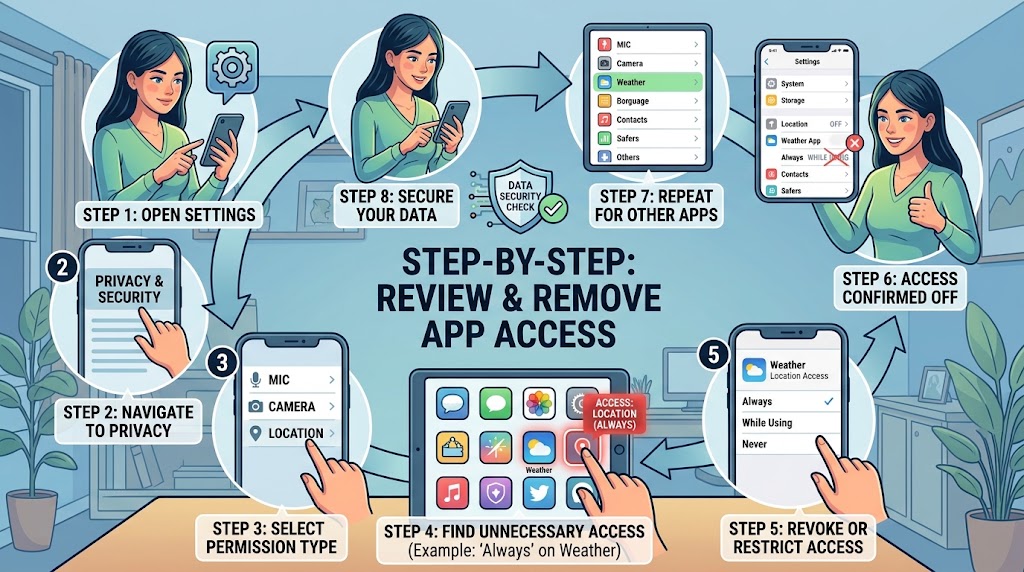
Apps often ask for access to things that are useful for their main features: your camera, microphone, contacts, location, photos, files, notifications, or calendar.
The problem is that permission decisions are easy to forget.
You may have allowed an app to access your location months ago because you needed one feature. Another app may still have access to your contacts even though you stopped using that feature. A game you rarely open may still be allowed to send notifications or use certain device capabilities.
A permission review gives you a chance to clean this up.
The goal is not to deny every permission. It is to make sure each app has the access it actually needs today.
Start by Understanding What an App Permission Really Means
An app permission is a control over a particular type of device information or capability.
On Android, permissions can include camera, microphone, contacts, calendar, location, phone, SMS, photos and videos, nearby devices, and files. Android also provides different choices for some sensitive permissions, such as allowing location all the time, only while using the app, asking each time, or denying access.
That means “allowed” does not always mean the same thing.
For example, giving a weather application location access only while you use it is different from allowing it to access your location all the time.
This distinction matters when reviewing permissions. Instead of asking, “Does this app have access?”, also ask, “How much access does it have?”
Do Not Start by Removing Everything
It can be tempting to open your phone’s privacy settings and turn off every permission you see.
That is usually not the best approach.
Some permissions are necessary for an app to perform its main function. A navigation app may reasonably need location. A video calling app may need the microphone and camera. A document-scanning app may need the camera.
If you remove a necessary permission, the app may stop working correctly.
A better approach is to review permissions according to purpose, sensitivity, and necessity.
For every permission, ask three simple questions:
Why does this app need it?
Does the app still need it?
Does it need this level of access?
If you cannot find a reasonable answer, investigate before leaving the permission enabled.
Review Android App Permissions
Android provides two useful ways to inspect permissions: you can review an individual app or review all apps that have a particular type of permission.
The exact wording and menu arrangement can vary by phone manufacturer and Android version.
On supported Android devices, Google documents the individual-app process as:
Settings → Apps → select the app → Permissions
You can then select a permission and change whether the app is allowed to use it.
This is useful when you already have a particular app in mind.
For example, if you have an old shopping app that you rarely use, open its permissions and check whether it still has access to your location, camera, contacts, photos, or other sensitive information.
Review Permissions by Category
You can also look at permissions from the other direction.
Instead of asking, “What can this app access?”, ask:
“Which apps can access my microphone?”
On supported Android versions, Google provides a Permission Manager under the privacy settings. You can choose a permission type and see the apps associated with it.
This approach is particularly useful for sensitive permissions.
Start with:
- Location
- Microphone
- Camera
- Contacts
- Photos and videos
- Files
- SMS
- Phone
- Calendar
- Nearby devices
You do not necessarily need to remove access from every app. Look for permissions that no longer make sense.
Pay Special Attention to Location Access
Location deserves a closer look because some Android versions can provide several levels of access.
For location, an app may have options such as allowing access all the time, only while using the app, asking every time, or denying access.
Suppose you gave a delivery app continuous location access while placing an order.
If you rarely use that app now, there may be little reason to leave the most permissive setting enabled.
You might choose a less permissive option if the app still needs location occasionally.
The important point is not that location access is automatically bad. It is that continuous access should have a continuing reason.
Check Camera and Microphone Permissions Carefully
Camera and microphone permissions deserve attention because they provide access to hardware that can capture information from your surroundings.
Review which apps have access and whether that access is still necessary.
A video conferencing application may need both.
A simple calculator probably does not.
A photo-editing application may need the camera if you use its camera feature, but perhaps not if you only edit existing photos.
Android also provides controls for disabling camera or microphone access at the device level on supported versions.
Do not assume that turning off a permission means the app has been deleted or that information previously collected by the app has been erased. Those are separate issues.
Review Apps You No Longer Use
Unused apps are an easy place to find permissions that no longer have a useful purpose.
You may have installed an application for a single event, trip, shopping order, photo project, or temporary task.
Months later, it may still be installed.
If you do not use an app anymore, consider whether you need it at all. Google also documents an Android option that can automatically remove permissions from unused apps on supported devices.
Deleting an app can also prevent that installed app from continuing to collect information from the device, although data the developer already collected is a separate matter. Google specifically notes that changing permissions or deleting apps can help control future data collection, while users may need to contact the developer about deletion of data already collected.
Review iPhone App Permissions
iPhone provides a central area for controlling access to information and device capabilities.
Go to:
Settings → Privacy & Security
From there, you can choose categories such as Contacts, Calendars, Photos, Reminders, Motion & Fitness, and other types of information.
Apple explains that you can select a category and turn an individual app’s access on or off.
This makes category-based auditing useful.
Instead of checking every application one by one, you can start with something sensitive such as Contacts.
Look through the apps that have access.
Then ask whether each one still needs it.
Repeat the process for Photos, Location, Microphone, Camera, Contacts, Calendars, and other sensitive categories that appear on your device.
Check iPhone Tracking Permissions Separately
App permissions and advertising tracking are not exactly the same thing.
On iPhone, Apple provides a separate tracking control under:
Settings → Privacy & Security → Tracking
Apple says apps must ask for permission before tracking you across apps and websites owned by other companies for advertising or sharing information with data brokers. You can change an app’s tracking permission later or prevent apps from requesting tracking permission altogether.
This is worth reviewing because someone can confuse “I denied location access” with “I stopped all tracking.”
They are different controls.
Privacy settings work best when you understand what each control actually governs.
Use App Privacy Report on iPhone
If you want more information than a simple list of permissions, Apple’s App Privacy Report can provide additional visibility.
Apple says the report can show how apps are using the permissions you granted them and their network activity. It is available under:
Settings → Privacy & Security → App Privacy Report
This can be useful when an application’s permission request seems difficult to understand.
Instead of making assumptions about what an app is doing, you can use the available privacy information as another piece of evidence.
It does not mean that every network connection is suspicious. Apps routinely communicate with servers to synchronize information, load content, authenticate accounts, deliver notifications, and perform other legitimate tasks.
The useful question is whether the behavior makes sense for the application.
Do Not Forget Account-Level App Access
One of the most important parts of a permission review happens outside the normal phone permission screen.
An app can have access to your online account even if you are not looking at your device permissions.
For example, you might have connected a third-party service to your Google Account.
That connection can allow the service to access certain Google data that you previously authorized.
Google provides controls for reviewing linked third-party apps and removing their access. Google explains that linked apps may request access to services such as Gmail, Drive, Calendar, Photos, and Contacts, depending on what you authorize.
This is a separate audit from checking Android permissions.
That distinction is important.
Device Permission vs Account Permission
Imagine that you once installed a photo-management service.
On your phone, you might have denied its access to your photos.
But you could still have an active connection between the service and your Google Account.
The two controls are not interchangeable.
A good privacy review therefore has two parts:
Device level: What can the installed app access on my phone or computer?
Account level: What can this service access from my online account?
Check both.
Review Google Account Connections
If you use Google services, review the third-party connections associated with your account.
Google’s current account controls let you select a linked app, view the access it has, and remove that access if you no longer want the connection.
Look especially closely at services you no longer recognize or use.
If you find one, do not automatically assume it is malicious.
First determine what it is.
An old service may have a familiar company name but an unfamiliar app name. A service may also have been connected years ago and simply forgotten.
If you confirm that you no longer need the connection, removing access is reasonable.
Removing Access Does Not Always Delete Previously Shared Data
This is one of the most important details to understand.
Removing an app’s access to your account does not necessarily erase information that the company already received.
Google explicitly notes that after access is removed, a third-party app may retain information that was previously provided. You may need to contact the developer and request deletion of that information separately.
So think of these as two different actions:
Revoke access: Stop the app from receiving further authorized access.
Delete stored data: Ask the company to remove information it already holds, where applicable.
If privacy is the reason you are removing an old service, check the developer’s account and privacy controls after revoking access.
Be Careful With “Sign in With Google”
“Sign in with Google” is convenient, but it does not mean that every connected application has unrestricted access to your Google Account.
Google explains that linked apps receive the information and services covered by the permissions you authorize. Depending on the connection, this can range from basic profile information to access involving specific Google products or account data.
That is why you should inspect the actual access rather than judging an app based only on how you originally signed in.
If you no longer use the service, removing its connection can be a sensible cleanup step.
Just remember that removing the Google connection does not necessarily delete the separate account you created with that service.
Review Windows App Permissions
Windows also provides privacy controls, although the system works differently from Android and iPhone.
In Windows 11, Microsoft documents app permission controls under:
Start → Settings → Privacy & security
You can select permission categories such as Location, Camera, and Microphone and choose which apps can use those capabilities.
Go through the categories that matter most to you.
For example, check:
Location
Which apps can determine your location?
Camera
Which apps can use your camera?
Microphone
Which apps can access your microphone?
Account information
Does an application have a reason to use account information?
The available categories can vary by Windows version and application type.
Remember That Windows Desktop Apps Are Different
Windows has an important limitation that is easy to miss.
Microsoft explains that traditional desktop applications do not always appear in the Windows privacy permission lists in the same way Microsoft Store apps do. Windows privacy settings therefore do not necessarily control all access by traditional desktop applications.
This means you should not assume that an empty permission list means an application has no access to your computer.
For desktop software, also review:
- The application’s own privacy settings
- Its account connections
- Where the application came from
- Whether you still need the software
- Its privacy policy
- Whether it runs automatically in the background
This is especially important for software installed from the web rather than through the Microsoft Store.
Watch for Permissions That Do Not Match the App’s Purpose
A useful way to spot questionable permissions is to compare the permission with the application’s primary function.
Consider a simple example.
A flashlight application requesting access to your microphone deserves more scrutiny than a video calling application requesting microphone access.
That does not automatically prove wrongdoing.
There may be a legitimate explanation.
But an unexpected permission is a reason to stop and investigate rather than blindly selecting “Allow.”
Google also encourages users to review an app’s Data Safety information on Google Play when considering how an app handles data.
Use multiple pieces of information rather than relying on a single label.
Review Permissions Before Installing New Apps
The easiest permission problem to fix is often the one you prevent in the first place.
When installing an unfamiliar app, slow down when it requests sensitive access.
Ask:
Does this permission make sense for the feature I want to use?
If an app requests something unrelated, look for an explanation before granting access.
Do not give an application access simply because refusing feels inconvenient.
You can often change the permission later, but it is better to make an informed decision at the beginning.
What to Do When an App Stops Working After You Remove Permission
Sometimes you will remove a permission and discover that the application no longer performs one of its features.
That does not necessarily mean you made a mistake.
The application may genuinely require that permission for the feature you are trying to use.
For example, if you deny camera access to a scanning application, its scanning feature may not work.
At that point, decide whether the feature is important enough to justify the permission.
If it is, restore the permission while choosing the least permissive option that still provides the functionality you need.
If you do not use the feature, there may be no reason to restore access.
A Simple Permission Audit You Can Repeat
You do not need to spend an entire afternoon reviewing every setting.
Start with the most sensitive areas.
Check location, then camera and microphone, followed by contacts, photos, files, calendar, and other information that matters to you.
Next, review applications you no longer use.
Then check account-level connections such as Google Account third-party access.
Finally, look at any unfamiliar applications or permissions.
For each questionable entry, choose one of four actions:
Keep: The permission is necessary and still makes sense.
Reduce: The app needs access, but a less permissive setting is available.
Remove: You no longer need the permission.
Investigate: You are not sure why the app has access.
That last option is important.
You do not have to make every decision immediately.
Do Not Remove Permissions From Work or School Apps Without Checking
If your phone or computer is managed by an employer, school, or another organization, some settings may be controlled by administrators.
An application may need certain permissions because it is part of an organization’s security, communication, or management system.
Removing permissions without understanding the purpose could interfere with required services.
If something is managed by an organization, check the organization’s guidance before making changes.
What Happens After You Remove Access?
Do a quick verification.
Open the application and test the feature that previously used the permission.
Then check whether the application still behaves normally.
For account-level access, return to the account’s connected-app list and confirm that the connection is no longer present.
If you removed access because you believed an application was suspicious, do not immediately reinstall it just to test something.
First determine why it was suspicious and whether you still need the service.
A Better Way to Think About App Privacy
The goal of an app-permission review is not to create a phone where every permission is disabled.
That would make many applications unusable.
The better goal is minimum necessary access.
An application should have the permissions it genuinely needs for the features you use, while unnecessary or forgotten access should be removed.
Reviewing permissions once is useful.
Reviewing them periodically is even better.
Apps change. You install new ones. You stop using old ones. Features change. Account connections accumulate.
A short privacy audit every few months can help keep those decisions from becoming permanent simply because you forgot about them.
Final Checklist
Before finishing your review, check:
- Android app permissions
- Android Permission Manager
- iPhone Privacy & Security settings
- iPhone App Privacy Report
- iPhone tracking permissions
- Windows Privacy & security settings
- Google Account third-party connections
- Apps you no longer use
- Location permissions
- Camera permissions
- Microphone permissions
- Contacts and calendar access
- Photos and file access
- Unfamiliar applications
- Permissions that do not match an app’s purpose
- Account data that may already have been shared
Most importantly, remember that removing permission is not the same as deleting previously collected data.
If a company already received information you no longer want it to keep, you may need to use that company’s privacy or data-deletion process separately.
Frequently Asked Questions
Should I deny every app permission I do not recognize?
No. An unfamiliar permission deserves investigation, not an automatic assumption that the app is unsafe. Check what the app does and why the permission might be required before deciding.
Does removing an app’s permission delete the data it already collected?
Not necessarily. Revoking permission generally controls future access from the device or account. Data already collected by a service may remain on its systems, so you may need to request deletion separately.
Is “Sign in with Google” the same as giving an app my Google password?
No. Google says third-party linked apps can receive the specific account information or services you authorize. You should never give your Google Account password directly to a third-party application.
How often should I review app permissions?
There is no universal schedule. A useful habit is to review them after installing many new apps, removing old apps, changing phones, or every few months as part of a general privacy check.
What permissions should I check first?
Start with the most sensitive ones: location, camera, microphone, contacts, photos, files, SMS, and phone access. Then review account-level connections separately.
Can removing a permission break an app?
Yes. If a feature depends on that permission, the feature may stop working. If you need the feature, restore the permission and choose the least permissive option available that still allows it to work.
Featured Image Concept
A clean modern smartphone privacy screen showing a list of app permissions such as location, camera, microphone, contacts, and photos, with several unnecessary permissions being switched off. Include a subtle shield/privacy theme without using exaggerated “hacker” imagery.
Sources and Further Reading
Google’s official Android documentation explains how to change permissions for individual apps and review permissions by category.
Apple’s official iPhone documentation explains how to control access to information and review App Privacy Report data.
Apple also documents the separate controls for app tracking permissions.
Microsoft’s documentation explains Windows app-permission controls and the important differences between Microsoft Store apps and traditional desktop applications.
Google’s account documentation explains how to review and remove third-party linked-app access and why removing access does not necessarily delete previously shared information.
Google also provides guidance on reviewing app data practices through Google Play’s Data Safety information.