
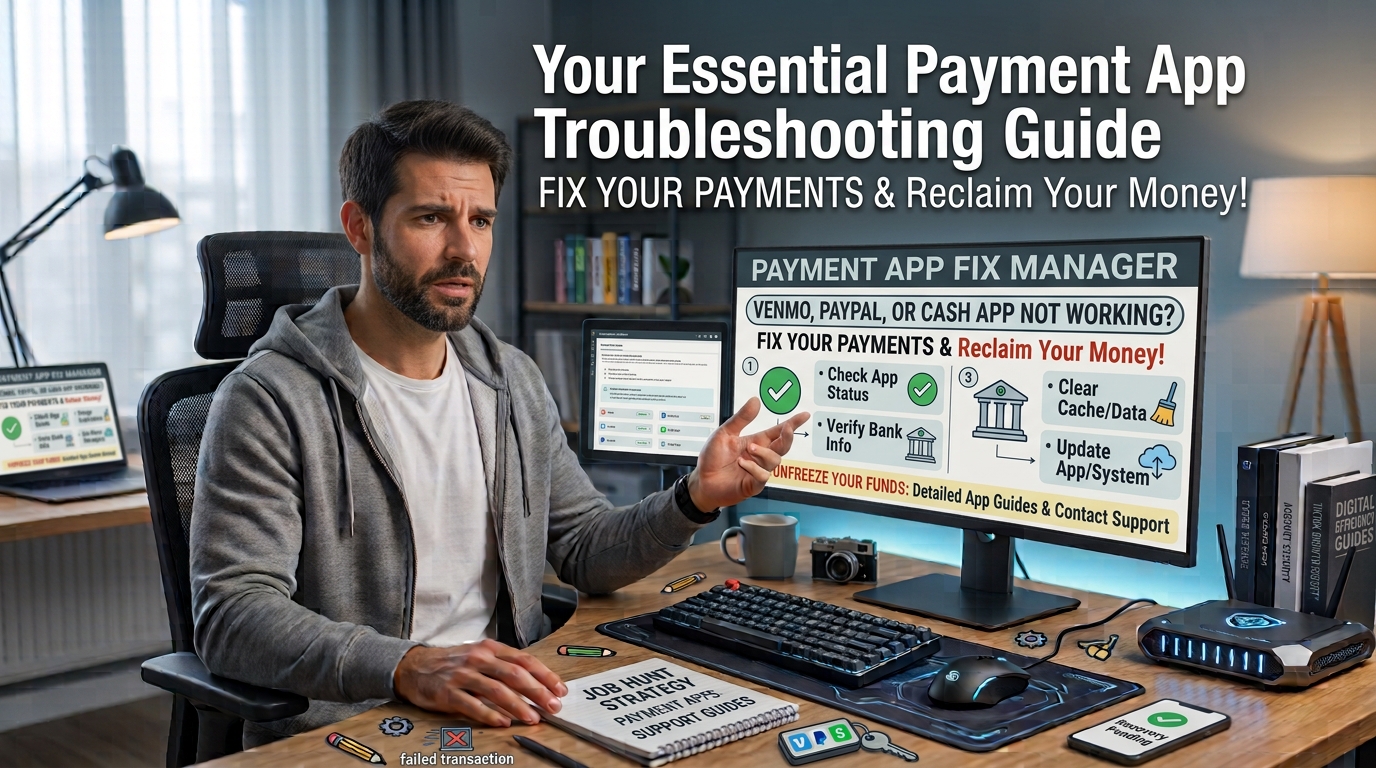
There is almost nothing more frustrating than standing at a checkout counter, trying to pay a friend for dinner, or sending money for an urgent bill, only for your screen to flash a sudden error message. I vividly remember standing in line at a local grocery store a few months back, tapping “Send Payment” on my smartphone, only for Venmo to decline the transaction three times in a row with a generic “Payment Declined” notice.
In that moment of awkwardness, it is easy to assume your account has been compromised or that the financial platform is down. However, in my years of managing digital transactions and helping friends and family troubleshoot payment platforms, I’ve found that the vast majority of transfer failures on Venmo, PayPal, and Cash App stem from simple, fixable technical or security hiccups.
Whether your transfer is stuck pending, declining instantly, or refusing to connect to your bank account, this guide will walk you through the practical, step-by-step solutions to resolve payment issues safely and get your digital wallet working smoothly again.
1. Quick Diagnostic Checklist: Rule Out the Basics First
Before diving into complex app settings, it pays to eliminate the most common “invisible” culprits that silently block mobile payment platforms. Digital wallet services rely on strict real-time verification protocols that fail if your connection or app environment is slightly off.
Check Platform Server Status
Sometimes the problem isn’t on your end at all; the payment network itself might be experiencing a temporary outage.
-
Check Official Status Pages: Visit the official status portals (e.g.,
status.paypal.comorstatus.venmo.com) or use third-party monitoring sites like DownDetector. -
Look for Maintenance Windows: Payment platforms frequently perform late-night updates or system maintenance that temporarily pauses instant transfers.
-
Wait Out Temporary Outages: If the servers are down, repeatedly attempting transactions can flag your account for automated security reviews, so it is best to pause for 30 to 60 minutes.
Disable VPNs and Check Your Internet Connection
Payment processors enforce strict fraud prevention rules tied to your geographical location.
-
Turn Off Virtual Private Networks (VPNs): If your VPN routes your internet connection through another state or country, the app’s security system may flag the login attempt as suspicious activity and block payments.
-
Toggle Airplane Mode: Switch your phone’s Airplane Mode on for 10 seconds and turn it off again to reset your mobile data connection.
-
Switch Connections: If you are on public Wi-Fi, disconnect and try using cellular data instead, as weak or restricted Wi-Fi networks can drop instant transaction requests.
2. Resolving App-Level Glitches and Outdated Software
Mobile payment applications update their encryption protocols continuously. Running an outdated app version or accumulating corrupted local cache files can cause payment buttons to freeze, throw unexpected errors, or log you out during checkout.
Clear Cache and Force Stop the App
Clearing temporary app files often resolves sudden crashes and stuck screens without deleting your account data.
-
On Android Devices: Go to
Settings > Apps > Select App (Venmo, PayPal, or Cash App) > Storage > Clear Cache. After clearing the cache, tap Force Stop and restart the app. -
On iOS Devices (iPhone): iOS doesn’t feature a direct “Clear Cache” button for individual apps. Instead, go to
Settings > General > iPhone Storage > Select App > Offload App. Reinstall the app directly from the App Store to refresh the core files. -
Log Out and Re-login: Manually logging out of your session, closing the app, and logging back in helps refresh your security session token.
Update to the Latest App Version
Using an outdated version of Cash App, Venmo, or PayPal can prevent your phone from communicating with current security gateways.
-
Open the Google Play Store or Apple App Store.
-
Search for your specific payment app and check if an Update button is visible.
-
Enable Automatic Updates in your phone settings to ensure future security patches install immediately.
3. Fixing Bank, Card, and Funding Source Denials
When an app reports “Payment Declined,” the block often originates from your linked credit card, debit card, or checking account rather than the payment app itself. Banks use automated algorithms to halt transactions that deviate from your usual spending habits.
Verify Card Expiration and Billing Addresses
A minor typo or outdated detail after receiving a replacement card will stop payments in their tracks.
-
Check Expiration Dates: Ensure the debit or credit card linked to your profile has not expired.
-
Match Billing Details Exactly: Verify that the ZIP code and street address linked to your payment app match the billing address registered with your bank card word-for-word.
-
Re-link Your Card: If a card keeps declining, delete it from the app settings, wait a few minutes, and re-enter the card details from scratch.
Contact Your Bank’s Fraud Department
Financial institutions frequently flag instant peer-to-peer transfers—especially late at night or for larger sums—as potential fraud.
-
Look for Security Texts: Check your SMS messages or email for automated alerts from your bank asking you to confirm a recent transaction.
-
Authorize the Transaction: Reply “YES” to any fraud verification texts to unblock your card for future attempts.
-
Call the Number on the Back of Your Card: Speak directly with customer service to ensure your bank hasn’t placed a temporary security hold on digital wallet transfers.
4. Overcoming Automated Security Flags and Account Limits
Digital payment services prioritize security above convenience. If an automated algorithm flags a payment pattern as unusual, it may temporarily restrict your ability to send or withdraw funds until your identity is fully verified.
Complete Identity Verification (KYC Requirements)
Federal regulations require platforms like Venmo, PayPal, and Cash App to verify user identities to prevent fraud and money laundering.
-
Check Your Limits: Unverified accounts face strict daily and weekly transfer limits. For instance, Cash App restricts unverified accounts to sending $250 within a 7-day period.
-
Submit Government Identification: Navigate to
Settings > Identity Verification(orBalancesettings) inside the app. -
Provide Clear Images: Upload a clear, un-cropped picture of your driver’s license or state ID along with your Social Security Number (SSN) to lift account caps and unlock full features.
Avoid Common Behavior Triggers
Certain patterns naturally raise red flags inside automated fraud monitoring engines.
-
Avoid Rapid Repeated Transactions: Sending five identical payments to the same person within a few minutes often triggers an automatic block.
-
Refrain from Flagged Keywords: Avoid using joke terms or sensitive words in payment memos (such as “loan,” “crypto,” or joke references to illegal items), as automated scanners will hold those payments for manual compliance review.
-
Keep Transfer Amounts Reasonable: If you rarely use the app and suddenly attempt a multi-thousand-dollar transfer, start with a smaller test amount first to build a trust history.
5. What to Do When a Payment Is “Pending” or “Stuck”
Few things cause more anxiety than money leaving your bank account while remaining marked as “Pending” or “Unclaimed” inside the app. Understanding how processing windows work can help you recover those funds smoothly.
Handling Unclaimed Payments on PayPal and Venmo
If a payment shows as “Pending” or “Unclaimed,” the recipient may not have completed their account setup.
-
Verify the Recipient’s Contact Info: Double-check the email address or phone number you sent the money to. A single typo will send funds to an unlinked or non-existent account.
-
Cancel Unclaimed Transfers: On PayPal, if a payment remains unclaimed, navigate to your Activity log, locate the transaction, and tap Cancel Payment to return the funds to your balance.
-
Confirm Email Links: If you are the recipient and money is pending, check your inbox for an email from the platform asking you to confirm your email address or link a bank account to accept the funds.
Cash App Pending Transactions and Cash Out Issues
Cash App sometimes holds funds temporarily to protect users from duplicate charges.
-
Review the Activity Tab: Open the clock icon in Cash App to view your transaction feed.
-
Follow Verification Prompts: If a transaction says “Pending,” tap on it. The app may ask you to confirm your pin or complete a quick selfie check to approve the release.
-
Patience for Bank Deposits: Standard cash-outs take 1 to 3 business days to clear through the ACH banking network. If you need immediate funds, opt for the “Instant Deposit” option (which carries a small fee) using a supported debit card.
Summary Troubleshooting Workflow
Use this decision table to quickly identify the right fix based on the specific error you are experiencing:
| Symptom / Error Message | Likely Cause | Recommended Action |
| “Payment Declined by Bank” | Security flag or outdated card info | Call your bank, reply to SMS fraud alerts, or re-link your card |
| App freezes or won’t open | Corrupted cache or outdated app | Clear app cache, force stop, or reinstall the latest update |
| “Transfer Limit Reached” | Unverified account status | Complete Identity Verification (submit photo ID and SSN) |
| “Connection Error” / Infinite Loading | Active VPN or poor Wi-Fi | Turn off VPN, toggle Airplane Mode, or switch to mobile data |
| Payment status says “Pending” | Typo in recipient address or unclaimed link | Verify email/phone number, or tap “Cancel” in Activity log |
Wrap Up
Having your Venmo, PayPal, or Cash App payment fail can feel alarming, but most issues are resolved easily once you systematically isolate the source. By turning off VPNs, keeping your software updated, matching your billing details, and clearing identity verification steps, you can prevent payment blocks and keep your transactions flowing seamlessly.
If you have tried all these steps and your transaction still declines, avoid spamming the “Send” button. Take a break, check for bank security messages, and reach out directly to the official support team within your app’s settings menu to review your account status safely.
Frequently Asked Questions (FAQs)
Is it safe to give payment apps my Social Security Number (SSN)?
Yes, providing the last four digits (or the full number for higher limits) of your SSN is standard practice for legitimate financial services operating in the United States. Federal anti-money laundering laws require apps like Venmo, Cash App, and PayPal to verify the identity of their users. Always ensure you are entering this information directly inside the official, updated app rather than through external links or unverified emails.
What should I do if money was deducted from my bank but the app says “Failed”?
This scenario usually represents a temporary “authorization hold” rather than a permanent charge. When a transaction fails mid-process, your bank may temporarily reserve the funds while waiting for final confirmation from the app. When the app doesn’t confirm the transaction, the bank automatically releases the held funds back to your available balance, typically within 1 to 5 business days.
Why won’t Cash App or Venmo accept my prepaid card?
Most mobile payment apps have strict restrictions against using gift cards or unverified prepaid debit cards. To prevent fraud, platforms often require cards that are registered directly under your legal name with a traditional issuing bank that supports recurring billing and electronic funds transfers (ACH).
Can I cancel a payment after hitting “Send”?
In most cases, peer-to-peer transfers sent via Venmo, Cash App, or PayPal Instant Transfer are processed within seconds, making them non-reversible. You can only cancel a payment if it was sent to an unlinked email address/phone number or if it is sitting in an “Unclaimed” state. If you accidentally send money to the wrong person, your best option is to send a polite request for a refund through the app’s request feature or contact support.
How do I contact official support without getting scammed?
Never search Google for customer support phone numbers for payment apps, as scammers frequently place fake numbers at the top of search results. Always initiate support contact inside the official app itself by going to Profile > Support or Help. Legitimate support agents will never ask you for your password, your two-factor authentication codes, or request that you send money to a “test” account.