
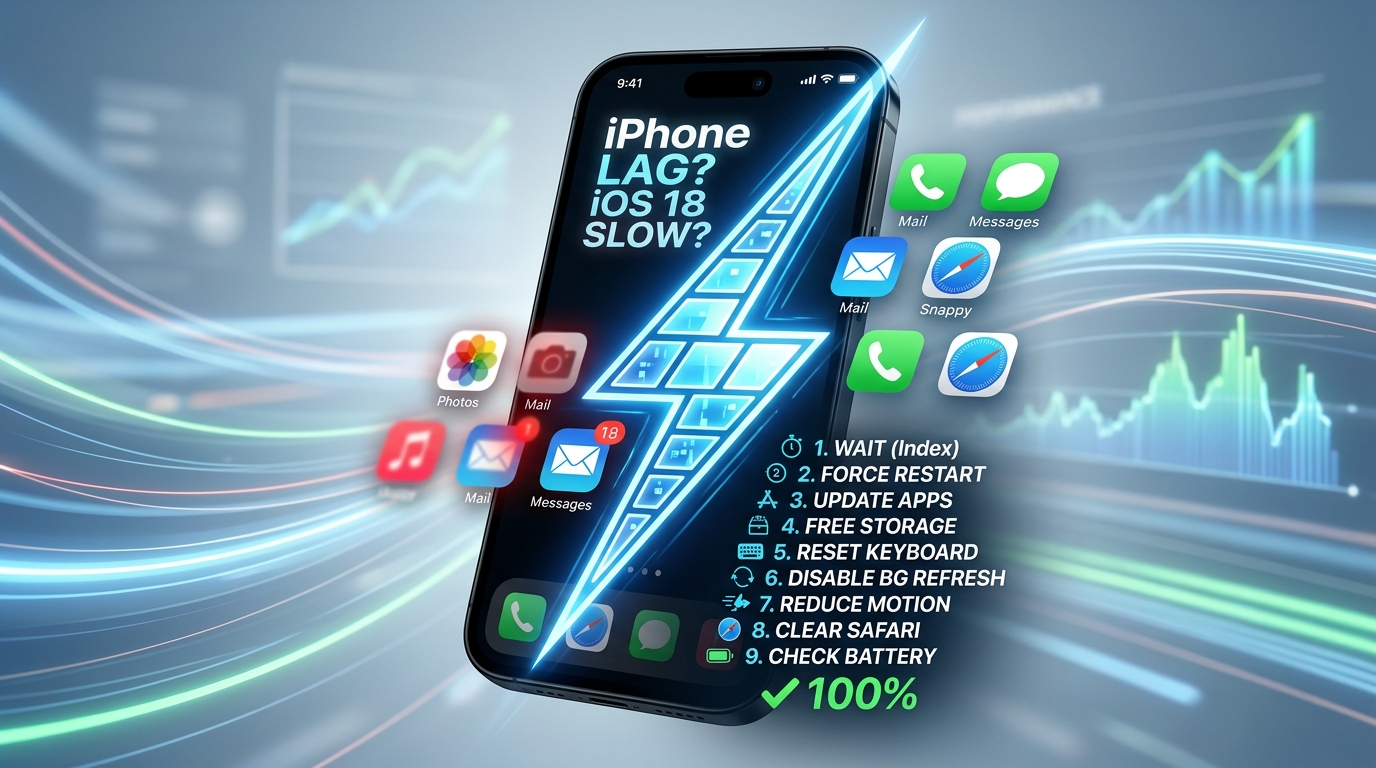
Updating your iPhone to Apple’s latest operating system should feel like stepping into a fresh, high-tech experience. With iOS 18 bringing deeper customization, redesigned system apps, and enhanced machine-learning capabilities, it is easily one of Apple’s most feature-packed releases.
However, many users experience an frustrating downside after updating: their once-nimble iPhone suddenly feels sluggish, warm to the touch, or slow to respond to simple screen taps.
If your device is lagging, apps are taking seconds to launch, or typing on the keyboard feels delayed, you are not alone. The good news is that a slow iPhone after an update is rarely permanent.
Whether your phone is performing heavy background indexing or struggling with cluttered temporary caches, there are immediate solutions to restore your device to peak performance.
Here are 9 proven, practical ways to speed up your iPhone on iOS 18 right now.
1. Allow Post-Update Background Indexing to Complete
Before tweaking settings or deleting files, it helps to understand how iOS operates immediately after a major software update.
When you install iOS 18, your iPhone does not finish the job the moment the lock screen reappears. In the background, your device initiates a process known as system re-indexing.
During this period, iOS 18 re-organizes your entire file structure. It rebuilds search indexes for Spotlight, processes photo libraries for on-device machine learning, updates Siri search capabilities, and syncs iCloud data.
This background housekeeping taxes your iPhone’s Central Processing Unit (CPU) and System-on-Chip (SoC), which can cause noticeable UI lag, frame drops, and faster battery drain.
How to Resolve It:
-
Give it time: Background indexing generally takes anywhere from 12 to 48 hours depending on how much data is stored on your device.
-
Keep it plugged in overnight: Leave your iPhone connected to Wi-Fi and a charger overnight. iOS prioritizes heavy indexing operations while charging and idle.
2. Free Up Essential Internal Storage Space
A common cause of performance slowdowns across all iOS versions is insufficient local storage. Modern mobile operating systems require virtual memory—using free internal storage as temporary working space (swap memory) for active processing.
If your internal storage is completely full, the operating system struggles to manage background processes, causing system-wide freezes and app crashes. Apple recommends maintaining a bare minimum of 1GB to 2GB of available space, though keeping 10% to 15% of your total capacity free provides optimal performance.
Settings > General > iPhone Storage
Steps to Reclaim Storage:
-
Enable Offload Unused Apps: Navigate to
Settings > General > iPhone Storage. Toggle on “Offload Unused Apps”. This removes the app binary while preserving your documents and user data. -
Clear Out Duplicates: Open the Photos app, scroll down to Utilities, and tap Duplicates. Merge duplicate photos and videos to recover gigabytes of space instantly.
-
Clean Up Message Attachments: Go to
Settings > General > iPhone Storage > Messagesand review large attachments like videos and GIFs that are taking up unnecessary space.
3. Perform a Force Restart (Hard Reset)
Turning your phone off and back on is standard advice, but a Force Restart goes a step further. Unlike a standard shutdown, a hard reset cuts power at the hardware level briefly, flushing out corrupt temporary caches, clearing random-access memory (RAM), and killing stuck background threads.
If a specific system daemon or background process gets caught in an infinite processing loop after the iOS 18 update, a force restart breaks the loop.
Force Restart Sequence:
1. Press & quickly release Volume Up
2. Press & quickly release Volume Down
3. Press & hold Side Button until Apple Logo appears
How to Force Restart Modern iPhones (iPhone 8 & Newer):
-
Press and quickly release the Volume Up button.
-
Press and quickly release the Volume Down button.
-
Press and hold the Side/Power Button.
-
Continue holding the button until the screen turns black and the Apple Logo appears, then release.
4. Turn Off Background App Refresh
Background App Refresh allows applications to check for new data, fetch updates, and refresh their feeds even when you aren’t actively using them. While convenient for messaging apps or email clients, having dozens of apps running constantly in the background taxes system resources and drains battery life.
In iOS 18, newly installed system frameworks can cause older, unoptimized apps to fetch data excessively in the background, leading to CPU throttling.
How to Turn It Off or Limit It:
-
Go to
Settings > General > Background App Refresh. -
Choose to turn the feature Off completely, or limit it strictly to Wi-Fi.
-
Alternatively, leave the main switch on and manually toggle off background privileges for non-essential apps like social networks, mobile games, and shopping platforms.
5. Enable “Reduce Motion” and Lower Visual Effects
iOS 18 features fluid transitions, dynamic wallpaper effects, blur filters, and app launch animations. While visually appealing, these UI elements require substantial Graphics Processing Unit (GPU) power.
If you are running iOS 18 on a slightly older model (such as an iPhone 11, 12, or SE), rendering these detailed animations in real time can make the user interface feel sluggish or stuttery.
Settings > Accessibility > Motion > Reduce Motion [TOGGLE ON]
How to Simplify Animations:
-
Open Settings and tap Accessibility.
-
Select Motion.
-
Toggle on Reduce Motion.
-
Turn off Auto-Play Message Effects and Auto-Play Video Previews.
Enabling this setting swaps out heavy zoom and parallax animations for smooth fade transitions, reducing CPU/GPU load and making the interface feel faster.
6. Update All Pending Apps via the App Store
Running outdated apps on a brand-new operating system is a recipe for system instability. App developers frequently release compatibility updates alongside major iOS launches to fix memory leaks, optimize code, and prevent background crashes.
If an application on your phone has not been updated to support iOS 18, it may consume excessive system resources, lock up the interface, or crash repeatedly.
How to Update Apps:
-
Open the App Store.
-
Tap your Profile Icon in the top-right corner.
-
Scroll down to check for pending updates.
-
Tap Update All to ensure every app is running its latest, iOS 18-optimized version.
7. Audit Location Services and Privacy Permissions
GPS tracking, Bluetooth scans, and background location fetching consume considerable power and CPU resources. When multiple apps request location data simultaneously, your phone’s processor can experience brief performance dips.
Cleaning up Location Services reduces unnecessary background activity and stops your device from overheating—a major cause of automatic hardware throttling.
| Location Setting Option | Best Use Case | Performance Impact |
| Always | Navigation apps, safety/family tracking | High battery & CPU usage |
| While Using the App | Weather, food delivery, ride-sharing | Moderate (only active when open) |
| Never | Games, photo editors, shopping apps | Zero background impact |
How to Restrict Location Data:
-
Navigate to
Settings > Privacy & Security > Location Services. -
Review the list of apps.
-
Change non-essential apps from Always to While Using the App or Never.
-
Toggle off Precise Location for apps that do not require exact coordinates (such as news outlets or store loyalty apps).
8. Reset Keyboard Dictionary and Clear Browser Caches
Two specific areas where iOS lag often manifests are typing delays and sluggish web browsing.
If your keyboard freezes or takes half a second to register keystrokes after updating to iOS 18, the system’s predictive text and autocorrect dictionary file may be corrupted. Similarly, overloaded browser caches in Safari can cripple web performance.
How to Fix Keyboard Typing Lag:
-
Open Settings and go to General.
-
Scroll to the bottom and select Transfer or Reset iPhone.
-
Tap Reset and select Reset Keyboard Dictionary. (Note: This resets custom learned words back to factory defaults without deleting personal data).
How to Clear Safari Cache:
-
Go to
Settings > Safari. -
Scroll down and tap Clear History and Website Data.
-
Select your desired time frame (e.g., All History) and confirm.
9. Check Battery Health and Thermal Throttling
If you have tried all software optimizations and your iPhone remains stubbornly slow, the issue might be hardware-related—specifically regarding battery health or heat management.
iPhones use Lithium-ion batteries that chemically degrade over time. When a battery’s Maximum Capacity drops below 80%, it may no longer supply the peak voltage required by the processor during intensive tasks. To prevent random shutdowns, iOS automatically turns on Performance Management (thermal/power throttling), which intentionally slows down the CPU.
Settings > Battery > Battery Health & Charging
How to Check Your Hardware:
-
Go to
Settings > Battery > Battery Health & Charging. -
Check your Maximum Capacity percentage.
-
If it reads below 80% or shows a message indicating degraded performance, scheduling an official Apple battery replacement will restore your phone’s full processor speed.
-
Watch for Heat: Avoid using your device in direct sunlight or heavy cases while fast-charging. Operating temperatures above 95°F (35°C) trigger safety throttling to protect internal components from thermal damage.
Frequently Asked Questions (FAQ)
Q1: Is it normal for my iPhone to run hot and lag right after installing iOS 18?
Yes, it is completely normal. During the first 24 to 48 hours post-update, iOS performs heavy background indexing, photo library analysis, and file optimization. This process stresses the processor, generating extra heat and temporary system lag. Connect your device to a charger, leave it on Wi-Fi overnight, and performance should return to normal.
Q2: Will resetting all settings delete my photos, messages, or personal files?
No. Selecting Settings > General > Transfer or Reset iPhone > Reset All Settings resets your system configurations—such as saved Wi-Fi networks, Bluetooth connections, display preferences, and privacy permissions—back to factory defaults. It does not erase your photos, contacts, documents, or personal data.
Q3: Why is my keyboard lagging when typing on messages or apps?
Keyboard lag usually occurs when the dynamic predictive text dictionary becomes bloated or corrupted during an operating system update. Resetting the dictionary via Settings > General > Transfer or Reset iPhone > Reset > Reset Keyboard Dictionary typically resolves typing delays immediately.
Q4: Can I downgrade back to iOS 17 if iOS 18 remains too slow on my phone?
You can only downgrade to a previous iOS version if Apple is actively “signing” that older firmware release (which usually stops a few weeks after a major version release). If Apple has stopped signing iOS 17, downgrading via iTunes or Finder is no longer supported. Applying performance tweaks, freeing up storage, and keeping iOS 18 updated with minor patch releases is the safest way forward.
Summary
Experiencing performance drops after a major update like iOS 18 can be frustrating, but it rarely means you need a new phone. By allowing background indexing to finish, freeing up local storage, disabling unnecessary background refresh, and managing visual effects, you can restore your iPhone’s responsiveness.
Take a few minutes to work through these 9 solutions, and your iPhone will be running smoothly on iOS 18 in no time!