
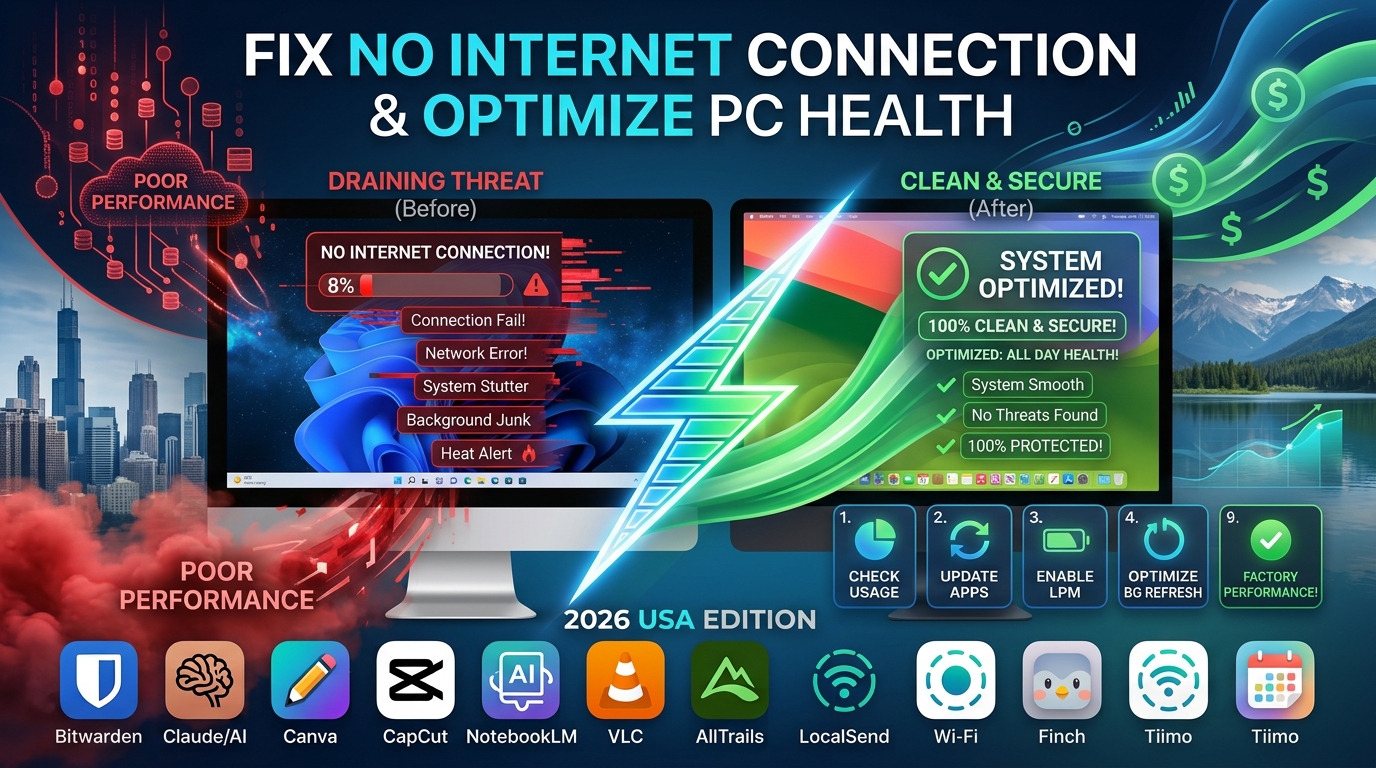
Few things cause immediate frustration quite like sitting down to work or relax, opening a browser, and seeing a bold “No Internet Connection” message staring back at you.
I have been in those exact shoes more times than I care to admit.
Whether I was minutes away from submitting a critical project or simply trying to stream a video, having the Wi-Fi icon show full bars while remaining completely disconnected from the web feels confusing and irritating.
The good news is that most home internet dropouts are caused by minor system glitches, IP assignment conflicts, or temporary router stalls.
You rarely need to call an expensive technician or buy new equipment to fix it.
In this guide, I will walk you through the practical, step-by-step methods I personally use to troubleshoot and resolve “No Internet Connection” errors on both Windows and macOS systems.
Preliminary Check: Is It the Computer or the Network?
Before diving into complex settings on your computer, you need to isolate where the breakdown is actually happening.
When my internet drops, the very first thing I do is grab my smartphone, turn off mobile data, and connect to the home Wi-Fi network.
Quick Isolation Steps
-
Check another device: Connect a phone or tablet to the same Wi-Fi network. If the phone loads websites fine, the problem lies within your computer’s software or network adapter.
-
Check the router lights: Look at your home router or modem. The internet indicator light (often labeled with a globe or “WAN”) should be solid green or blue. If it is blinking amber, red, or completely dark, your Internet Service Provider (ISP) or modem is having issues.
-
Try a direct cable: If you have an Ethernet cable handy, plug your computer directly into the router. If wired internet works, your computer’s Wi-Fi adapter or Wi-Fi settings need attention.
Step 1: Perform a Proper Power Cycle (The 30-Second Rule)
It sounds simple, but restarting your home networking hardware solves a vast majority of connectivity bugs.
Modern home routers are essentially small computers that process millions of data packets daily. Over time, their internal memory can become cluttered, leading to routing errors or frozen IP handshakes.
How to Power Cycle Correctly
-
Unplug the power cord: Do not just press the power button on the back of the router. Pull the power cable out from the wall or the back of the device.
-
Wait 30 full seconds: This allows the electrical capacitors inside the router to drain completely, flushing the temporary memory (RAM).
-
Plug it back in: Reconnect the power cable and allow 2 to 3 minutes for all the indicator lights to turn solid green before testing your connection again.
Step 2: Fix “No Internet Connection” on Windows
If your router is working fine on other devices but your Windows PC refuses to load web pages, the issue usually stems from cached network settings, outdated adapter drivers, or an IP assignment loop.
Run the Built-In Network Troubleshooter
Windows includes a diagnostic tool that can automatically reset stuck adapters and clear common configuration errors.
-
Open Settings by pressing
Windows Key + I. -
Go to Network & Internet (or System > Troubleshoot on Windows 11).
-
Select Other troubleshooters and click Run next to Network and Internet.
-
Allow Windows to apply any suggested fixes, such as resetting the Wi-Fi adapter.
Flush the DNS Cache and Reset TCP/IP Stack
When websites refuse to load even though you appear connected, corrupted Domain Name System (DNS) cache files are often the culprit. Flushing this cache forces Windows to request fresh, accurate routing paths.
-
Type
cmdinto the Windows search bar. -
Right-click Command Prompt and choose Run as administrator.
-
Type the following commands one by one, pressing Enter after each line:
netsh winsock reset
netsh int ip reset
ipconfig /release
ipconfig /renew
ipconfig /flushdns
-
Restart your computer. This combination clears out bad network configurations and requests a fresh IP address from your router.
Forget and Reconnect to Your Wi-Fi Network
Saved network profiles can sometimes keep outdated passwords or security handshakes that block access.
-
Go to Settings > Network & Internet > Wi-Fi.
-
Click Manage known networks.
-
Locate your home Wi-Fi name, click on it, and select Forget.
-
Click the Wi-Fi icon in your taskbar, select your network, re-enter the password, and test the connection.
Step 3: Fix “No Internet Connection” on Mac (macOS)
Apple computers are known for reliable networking, but software updates, corrupt system preference files, or misconfigured location profiles can cause connection drops.
Renew the DHCP Lease
When your Mac connects to a Wi-Fi network, the router assigns it a temporary IP address through a system called DHCP. If this assignment stalls, renewing the lease forces a fresh connection without disconnecting you from the Wi-Fi network.
-
Click the Apple Menu () in the top-left corner and select System Settings (or System Preferences on older macOS versions).
-
Click Wi-Fi in the left sidebar, then click Details… next to your connected network.
-
Select the TCP/IP tab on the left.
-
Click Renew DHCP Lease and click OK.
Forget the Wi-Fi Network and Re-Add It
Similar to Windows, refreshing the saved connection details often clears underlying credential conflicts.
-
Go to System Settings > Wi-Fi.
-
Scroll down and click Advanced… at the bottom right.
-
Find your home Wi-Fi network in the Known Networks list.
-
Click the three dots (…) next to the network name and select Forget This Network.
-
Restart your Mac, click the Wi-Fi icon in the menu bar, re-select your network, and type in your Wi-Fi password.
Step 4: Change Your DNS Settings (Windows & Mac)
By default, your computer uses the DNS servers provided by your Internet Service Provider. If your ISP’s servers go down or run slowly, your computer won’t be able to translate web addresses (like google.com) into numerical IP addresses, leaving you with “No Internet.”
Switching to a reliable public DNS service like Google Public DNS or Cloudflare often fixes this problem instantly while slightly speeding up your browsing experience.
Recommended Public DNS Addresses
-
Cloudflare DNS: Primary
1.1.1.1| Secondary1.0.0.1 -
Google Public DNS: Primary
8.8.8.8| Secondary8.8.4.4
How to Change DNS on Windows
-
Open Settings > Network & Internet > Wi-Fi (or Ethernet).
-
Click on Hardware properties or your connected network.
-
Next to DNS server assignment, click Edit.
-
Change the setting from Automatic (DHCP) to Manual.
-
Toggle IPv4 to On, then enter
1.1.1.1in the Preferred DNS field and1.0.0.1in the Alternate DNS field. -
Click Save.
How to Change DNS on macOS
-
Open System Settings > Wi-Fi and click Details… next to your active connection.
-
Select DNS from the left menu.
-
Click the plus (+) button under the DNS Servers section.
-
Add
1.1.1.1and1.0.0.1. -
Remove any older DNS entries using the minus (-) button, then click OK.
Common Mistakes That Cause Connection Dropouts
When troubleshooting home networks, it is easy to overlook minor details that prevent your devices from reaching the web. Avoid these common pitfalls:
-
Leaving VPNs or Proxies Active: Virtual Private Networks (VPNs) create encrypted tunnels for your traffic. If the VPN server crashes or drops its connection, it can block all outgoing internet traffic on your device until disabled.
-
Incorrect Date and Time Settings: Security certificates rely on precise system times. If your computer’s clock is off by even a few minutes, web browsers may refuse to connect to secure websites.
-
Overcrowded Wi-Fi Channels: If you live in an apartment building, dozens of nearby routers might be broadcasting on the same wireless channel. Switching your router’s wireless band from 2.4 GHz to 5 GHz can dramatically reduce interference.
-
Aggressive Antivirus Firewalls: Third-party security applications sometimes mistake legitimate system network requests for security threats and block adapter communication entirely.
Summary Troubleshooting Checklist
Frequently Asked Questions
Why does my Wi-Fi say “Connected, no internet”?
This status means your computer is successfully communicating with your local router via Wi-Fi, but your router is unable to send or receive data from your Internet Service Provider. This can happen due to an ISP outage, an unplugged modem cable, or a corrupted IP address assignment on your device.
Will resetting my network settings erase my personal files?
No. Performing a network reset on Windows or macOS only removes saved Wi-Fi networks, Bluetooth pairings, and custom network adapter configurations. None of your personal documents, photos, or installed programs will be deleted.
How do I know if my internet outage is on my ISP’s end?
If multiple devices in your home (phones, laptops, smart TVs) cannot access the web, and restarting your router does not restore the connection, the issue is likely on your ISP’s side. You can check status tracking websites like Downdetector using cellular data or call your provider’s customer service line to check for local service disruptions.
Should I connect to 2.4 GHz or 5 GHz Wi-Fi?
Use 5 GHz if your computer is in the same room or close to your router, as it offers much faster speeds and less interference. Use 2.4 GHz if you are far away from the router or separated by thick walls, as lower-frequency signals travel through solid objects more effectively.