
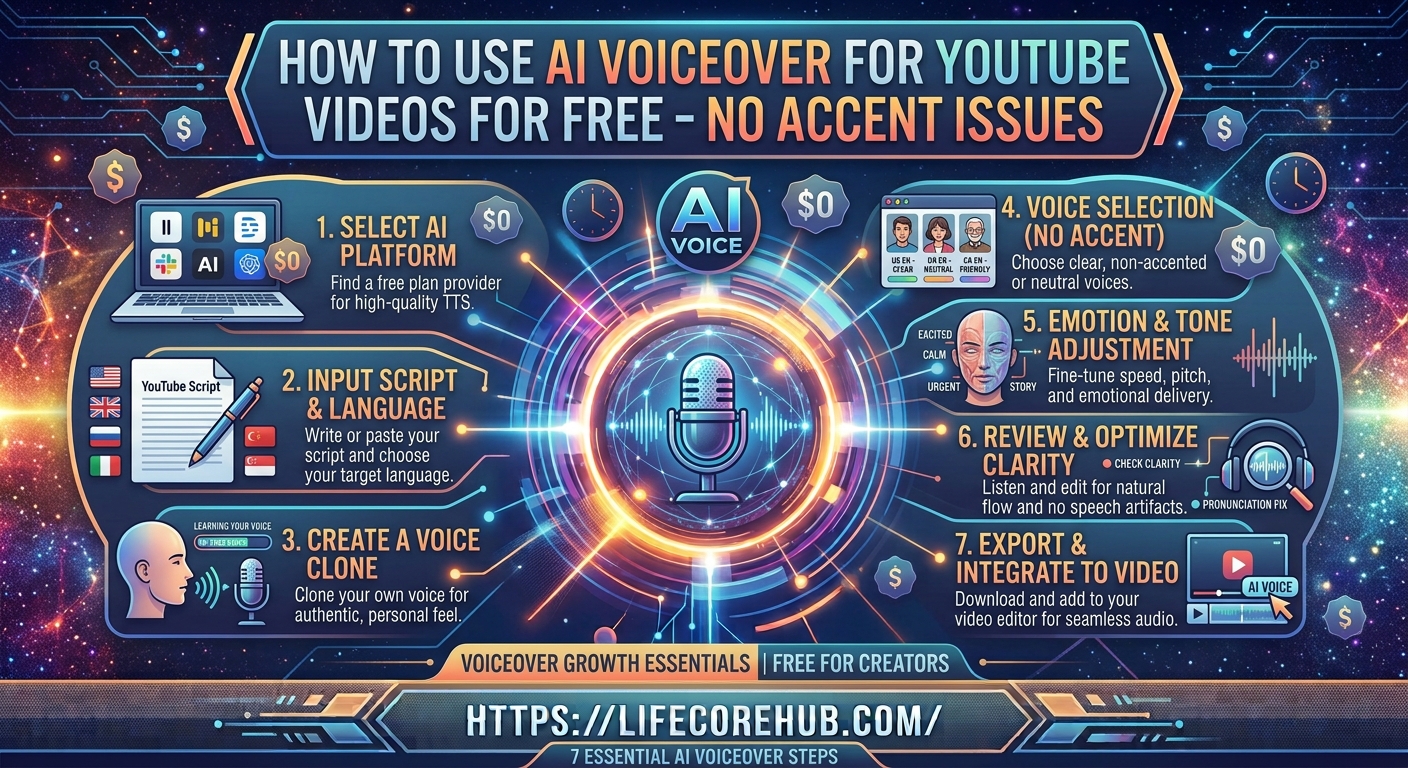
Are you struggling with your natural speaking voice or worried about heavy accents making your YouTube videos hard to understand? In the competitive creator landscape of 2026, clear, professional audio is just as important as high-definition video. If your viewers can’t follow your narration, they will click away within the first thirty seconds.
I remember when I first started my channel, I was terrified of recording my own voice. I sounded nervous, stumbled over words, and spent hours re-recording simple sentences. When I finally switched to high-quality AI narration, my average view duration spiked by nearly 40%. In this guide, we will walk through exactly how to use AI voiceover for YouTube videos for free, ensuring you get professional, accent-free results every single time.
Step 1: Choosing the Right Neural Text-to-Speech (TTS) Tool
To avoid the “robotic” sound of early AI, you must use tools powered by Neural TTS technology. These models analyze human breathing, rhythm, and emotional inflection to sound like a real person.
The best free platforms currently available for creators include:
-
ElevenLabs: Offers the most realistic “Storytelling” voice models (10,000 characters free monthly).
-
CapCut (Desktop/Web): Provides excellent, built-in “US/UK Narrator” voices that sync directly to your video timeline.
-
Canva: Perfect for quick, simple social media clips with clear, neutral-accent voice presets.
Method 2: Optimizing Your Script for AI Clarity
AI struggles with complex punctuation and shorthand. Before you generate your audio, you need to “translate” your draft into a format the AI can read naturally.
Follow these rules to prevent accent issues and robotic phrasing:
-
Spell Out Numbers: Write “ten dollars” instead of “$10” and “twenty-six” instead of “26.”
-
Expand Abbreviations: Change “vs” to “versus” and “approx.” to “approximately.”
-
Use Short Sentences: Break long, winding sentences into smaller, punchy segments to help the AI maintain natural pacing.
-
Phonetic Guides: If you use technical terms or brand names, spell them out phonetically in brackets (e.g., “The algorithm, al-guh-ri-thum, is complex”).
Method 3: Selecting the Correct Voice Style
When browsing voice libraries, don’t just pick the first option. The Style of the voice profile determines the accent and delivery speed.
-
Avoid “Assistant” Voices: These are designed for quick data retrieval and often sound overly clipped or artificial.
-
Filter by “Narrator”: Look for tags like “Storytelling,” “Professional,” or “Documentary.” These voices use a neutral, broadcast-style accent designed for longer content.
-
Test the Cadence: Always generate a 30-second sample of your script first to ensure the AI isn’t rushing through your key points.
Why Does Audio Editing Matter for AI Voices?
Even the best AI voiceover can sound “flat” if it is sitting by itself. According to Google’s Creator Academy, audio layering is the secret to keeping viewers engaged throughout the video.
-
Layer Background Music: Use a low-volume lo-fi or ambient track (10–15% volume). It acts as “audio glue,” filling the silence between sentences and making the AI feel more human.
-
Use Audio Ducking: In your video editor, enable “Auto-Ducking.” This automatically lowers the music volume whenever the AI voiceover is speaking.
Comparing Free AI Voiceover Tools Side-by-Side
To help you choose your production software, here is how the top tools compare for YouTube creators:
| Feature / Metric | ElevenLabs | CapCut Web | Canva AI |
| Voice Quality | Industry-leading (Human-like) | Great (Broadcast-style) | Good (Clean & Simple) |
| Ease of Use | Moderate | Very High | Very High |
| Best For | Long-form essays & documentaries | Short-form & TikTok/Shorts | Quick social media posts |
| Accent Options | Wide variety of global accents | Standard neutral accents | Standard neutral accents |
| Price | Free (10k chars/mo) | Free (Unlimited) | Free (Included in templates) |
Method 4: Humanizing the Final Audio
If a specific word sounds robotic, don’t try to fix the AI setting. Use these manual “human” editing tricks to polish the final track:
-
Punctuation Pacing: Use commas ( , ) for short breaths and ellipses ( … ) for dramatic pauses.
-
The Synonym Swap: If the AI consistently mispronounces a word like “utilize,” change it to “use.”
-
Sentence Regeneration: If one paragraph sounds unnatural, just re-generate that single sentence separately rather than the whole script.
For more tips on production, check out our [guide on setting up your home studio for YouTube].
Frequently Asked Questions
Can I get monetized on YouTube using AI voiceovers?
Yes, but you must add “significant transformative value.” Do not just read a Wikipedia article; add your own editing, visuals, and commentary.
Are these free AI voices copyright-safe?
Yes, most major providers like ElevenLabs and CapCut grant commercial rights for standard plans, allowing you to use the audio in monetized videos.
How do I prevent the AI from sounding like a robot?
Add background music and use punctuation (commas and periods) to control the flow, ensuring the AI pauses exactly where a human would.
Should I disclose the use of AI voiceovers?
Yes. YouTube requires you to label “altered or synthetic” content. You can do this in the video upload settings under the “Labels” section.
Which tool has the best free “US Male/Female” accents?
CapCut offers the most consistent, neutral “US Narrator” voices that are completely free to use for unlimited video projects.
Conclusion
Learning how to use AI voiceover for YouTube videos for free allows you to produce studio-quality content without expensive microphones or professional voice training. By optimizing your script for clarity, choosing “Narrator” style voice profiles, and layering background music, you can create a professional brand that rivals top-tier channels.
Start your next project by running your script through ElevenLabs or CapCut today. Take 15 minutes to refine your punctuation, and you will immediately notice a more natural, human-like cadence in your final export.
What is the biggest struggle you have faced when trying to make AI narration sound like a real person? Let us know in the comments below!
Disclaimer: This article is for informational purposes only. Always ensure your AI-generated content complies with YouTube’s Manipulated Media policies by disclosing the use of AI tools in your video descriptions.