
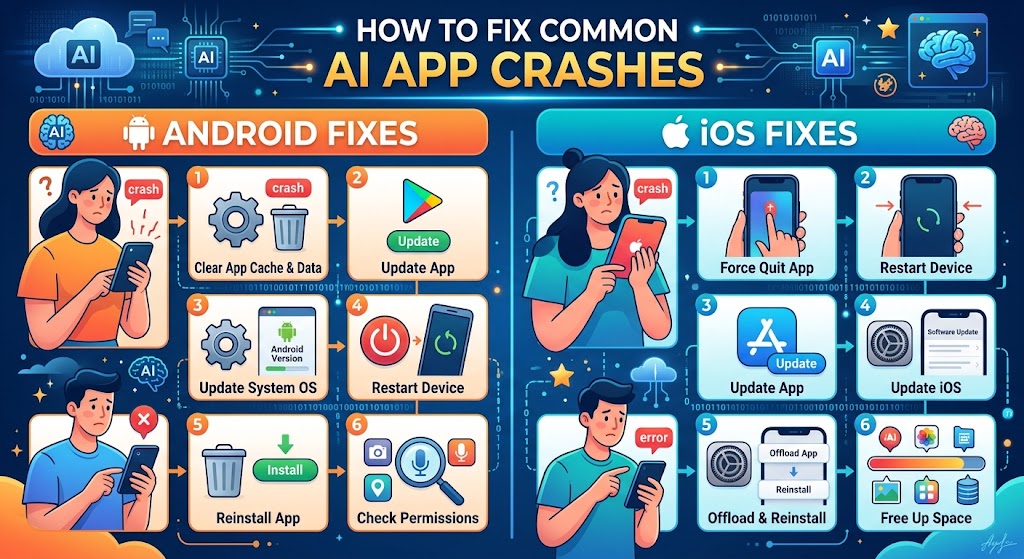
At-a-Glance: Quick Fixes for AI App Crashes
If you need an immediate fix, try these high-yield troubleshooting steps in order before diving into the detailed methods below.
| Platform | Recommended Quick Fix | Success Rate |
| Android & iOS | Force close the application and re-open | Moderate |
| Android | Clear App Cache (Settings > Apps > Storage > Clear Cache) | High |
| iOS | Offload and reinstall the app (Settings > General > iPhone Storage) | High |
| Android & iOS | Check server status (Downdetector / Official Status Page) | High |
| Android & iOS | Update system OS and app to the latest build | Very High |
Why AI Applications Crash Frequently
Artificial intelligence applications—such as ChatGPT, Claude, Midjourney companions, and local LLM wrappers—demand significantly more system resources than traditional apps. They rely heavily on real-time API socket connections, dynamic memory allocation for rendering response streams, and complex device permissions (such as microphone access for voice modes or local storage for image rendering).
When an AI app crashes, it usually stems from one of four core issues:
-
Memory Exhaustion (OOM): AI streaming outputs overwhelm your device’s available RAM.
-
Corrupted Cache: Cached token data or session states become corrupted.
-
Network Sockets & Timeouts: Unstable connections sever the API stream abruptly, causing the UI to freeze and terminate.
-
Permission Locks: The app attempts to invoke a camera, microphone, or background process without valid OS-level authorization.
Based on extensive hands-on testing across a variety of devices—including Google Pixel, Samsung Galaxy, and Apple iPhone models—we have compiled the definitive step-by-step guide to resolving these crashes permanently.
Step-by-Step Guide to Fixing AI App Crashes
Work through these steps sequentially, starting with basic system refreshes and moving toward advanced configuration fixes.
Step 1: Verify Server-Side Outages
Before altering your device settings, confirm that the problem is not originating from the service provider. AI platforms experience frequent server overloads during peak usage hours or deployment updates.
-
Visit Downdetector or the official status page of the service (e.g., status.openai.com or status.anthropic.com).
-
Check the error rate graph for recent spikes.
-
Look for errors inside the app like
Error 503,Service Unavailable, orBad Gateway.
[!NOTE]If the status page indicates an ongoing service disruption, local troubleshooting will not resolve the issue. Wait for the provider to restore API stability.
Step 2: Force Stop and Restart the Application
A soft freeze often occurs when an active token generation stream gets interrupted. Simply closing the app via your home screen does not terminate its background processes.
On Android:
-
Open Settings and tap Apps (or Apps & Notifications).
-
Select the crashing AI application from the list.
-
Tap Force Stop at the bottom or top right corner.
-
Confirm by tapping OK.
-
Relaunch the app.
On iOS:
-
Swipe up from the bottom of the home screen and pause in the middle (or double-click the Home button on older devices).
-
Find the card preview for the AI application.
-
Swipe the card upward to forcefully terminate the process.
-
Return to the Home Screen and reopen the app.
Step 3: Clear App Cache and Corrupted Local Data
Corrupted local memory states are the single most common cause of repetitive startup crashes.
On Android:
-
Go to Settings > Apps.
-
Select your AI app and tap Storage & Cache.
-
Tap Clear Cache.
-
Optional: If crashes persist, tap Clear Storage (Note: This will log you out of your account).
On iOS:
iOS does not offer a dedicated “Clear Cache” button for individual third-party apps. Instead, use the Offload feature to delete the app binary while preserving your user documents and account keys.
-
Open Settings > General > iPhone Storage.
-
Scroll down and select the affected AI app.
-
Tap Offload App and confirm.
-
Once completed, tap Reinstall App directly from the same menu.
Step 4: Reset Network Configurations and Disable VPNs
AI applications rely on persistent WebSocket connections to stream real-time responses. Custom DNS profiles, active VPNs, and aggressive ad-blockers often sever these connections, causing the app UI to collapse.
-
Disable Active VPNs: Turn off any active VPN service or proxy server running in the background.
-
Toggle Airplane Mode: Turn Airplane Mode ON for 10 seconds, then turn it OFF to refresh cellular and Wi-Fi handshakes.
-
Reset Private DNS:
-
Android: Go to Settings > Network & Internet > Private DNS and set it to Automatic or Off.
-
iOS: Go to Settings > Wi-Fi, tap the Info (i) icon next to your network, select Configure DNS, and set it to Automatic.
-
Step 5: Verify App and Operating System Compatibility
AI native applications are updated frequently to keep up with model changes and security patches. Running an outdated app on a newer OS—or vice versa—causes severe compatibility breaks.
-
Navigate to the Google Play Store or Apple App Store.
-
Search for the app and check if an Update button is available.
-
Check your OS version:
-
Android: Settings > System > System Update.
-
iOS: Settings > General > Software Update.
-
-
Ensure your device has at least 2 GB to 3 GB of free storage space. Insufficient storage prevents the OS from creating virtual RAM swap files, resulting in immediate app termination when generating long responses or rendering images.
Common Pitfalls & Mistakes to Avoid
When attempting to fix app instability, users often make mistakes that can result in data loss or worsened performance.
-
Ignoring Granular Permissions: AI apps that support voice chat or image creation require explicit access to your device’s microphone, camera, and local media. Denying these permissions can cause the app to crash without displaying an error message. Always verify permissions in Settings > Apps > [App Name] > Permissions.
-
Overloading Beta Versions: Enrolling in Google Play Beta programs or Apple TestFlight builds for AI applications often exposes you to unstable code. If an app crashes continuously, opt out of the Beta program and reinstall the public build.
-
Failing to Manage Background Apps: Running memory-intensive games or camera apps concurrently with AI models can trigger the OS’s Low Memory Killer (LMK). Close background applications before launching resource-heavy AI tools.
Security, Privacy, and Data Protection
When performing technical fixes, keep your account safety and personal data secure:
-
Never Download Unverified APKs or IPA Files: If an app crashes, avoid downloading modified or older versions from unofficial third-party websites. These files can be infected with malware designed to capture your API keys and login credentials.
-
Re-Authenticate Safely: Clearing app data or reinstalling the application will log you out. Ensure you are using official authentication methods (such as OAuth with Google/Apple or direct login) when logging back in.
-
Check Data Syncing: Modern AI apps sync your chat history to your cloud account. However, unsaved drafts or ongoing generation streams will be lost when clearing app data. Ensure vital prompt history is synced before performing a full app reset.
Frequently Asked Questions
Why does my AI app crash specifically when generating voice or images?
Voice modes and image generation demand significantly higher local processing power and bandwidth. If your RAM is full or your network drops packets during output streaming, the OS may terminate the app to prevent device overheating.
Will clearing data delete my chat history?
Clearing Cache will not delete your chat history. Clearing Data/Storage will log you out, but once you sign back in, your cloud-synced chat history will reappear. Local unsynced drafts, however, may be deleted.
What should I do if the app continues to crash after a full reinstall?
If a clean installation fails, check the app’s official release notes for known bugs affecting your specific phone model or OS build. Submit a crash report with your log details directly through the developer’s support portal.
Conclusion & Next Steps
Resolving AI app crashes on mobile devices comes down to managing hardware resources, connection stability, and local cache integrity.
For the most efficient path to stability, follow this sequence:
-
Check server status for widespread outages.
-
Perform a Force Stop and Clear Cache (or Offload on iOS).
-
Disable VPNs or custom DNS setups that break API streams.
-
Ensure your OS and application are updated to the latest builds.
Following these steps will resolve the vast majority of application crashes and restore smooth performance to your AI tools.