
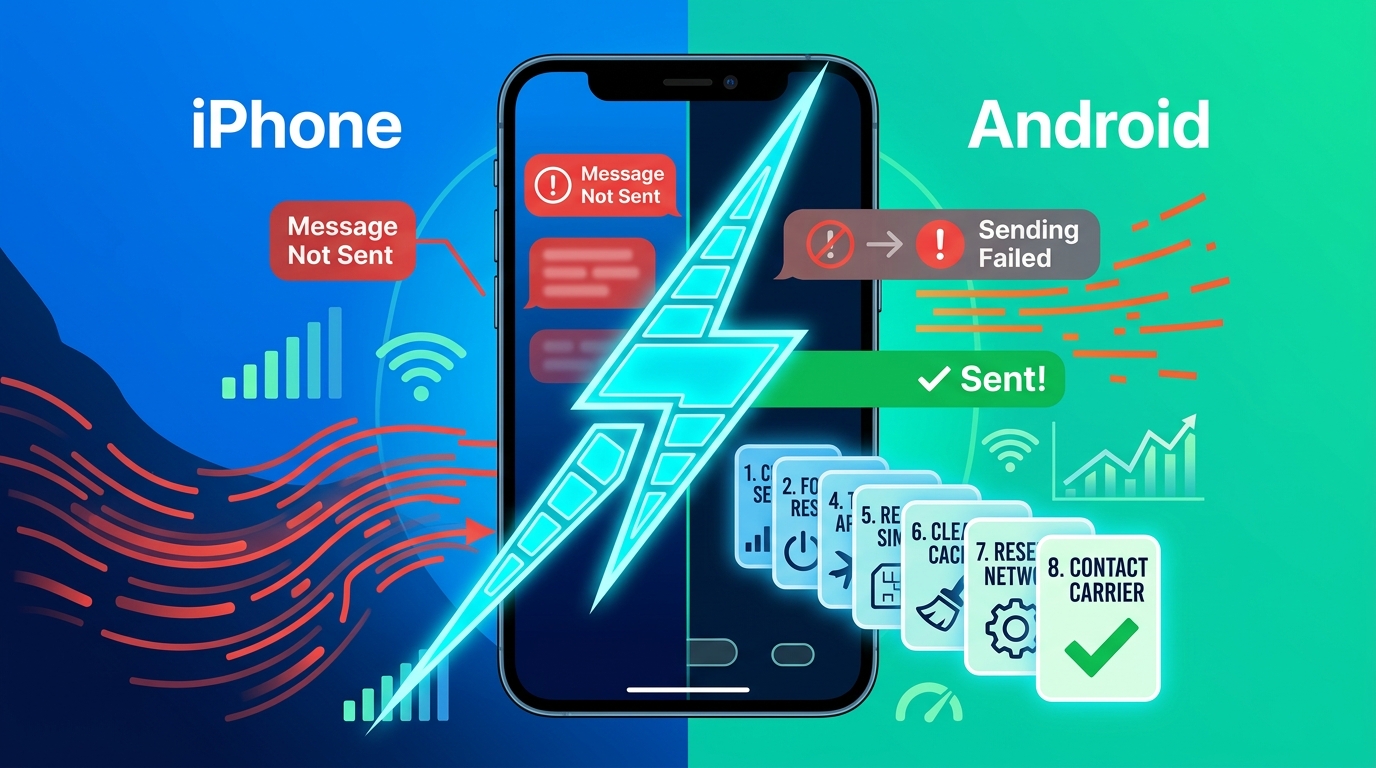
There are few things more annoying in our hyper-connected world than hitting the “send” button on a time-sensitive text, only to see that dreaded red exclamation mark or a spinning progress bar. Whether you are trying to coordinate dinner plans or handle a work emergency, when text messages are not sending on your iPhone or Android device, the frustration is instant.
I’ve spent years troubleshooting mobile connectivity for friends and family, and I can tell you this: in 90% of cases, the issue isn’t your phone hardware breaking—it’s a software hiccup or a minor network configuration error. Most people panic and think they need a new SIM card or a repair shop visit, but you can usually resolve this yourself in under five minutes.
1. The “Airplane Mode” Refresh
Before you start digging into complex settings, let’s go for the easiest win. Enabling Airplane Mode forces your device to sever all connections to cellular towers and Wi-Fi networks. Disabling it triggers a “clean” reconnection process, which often clears up temporary registration errors with your carrier.
-
How to do it: Swipe down from your home screen to open the Control Center (iPhone) or Quick Settings (Android). Tap the Airplane icon to turn it on. Wait about 10 seconds, then tap it again to turn it off.
This simple toggle is often enough to “handshake” with the nearest tower again and push your stuck messages through. It’s the digital equivalent of turning a device off and back on again, but much faster.
2. Check Your Network Signal Strength
Sometimes, the problem is simpler than a software glitch—you just might not have the bars for it. If you are in a basement, a large concrete building, or a rural area with poor coverage, your phone may struggle to maintain the connection required to send an SMS or MMS.
Check your signal indicator at the top corner of your screen. If you have only one bar or an “E” (Edge) or “3G” symbol, your data connection is likely too weak to send media-rich texts like photos or videos. Try moving to a window, going outside, or—if you have Wi-Fi—enabling Wi-Fi Calling to bypass the cellular restriction.
3. Verify Your Messaging Settings (iPhone vs. Android)
Different operating systems handle messaging protocols differently. If you are on an iPhone, you might be struggling with iMessage (the blue bubbles); if you are on Android, you might be dealing with RCS or standard SMS (the green bubbles).
For iPhone (iMessage Issues)
Go to Settings > Messages. Ensure that iMessage is toggled ON. If it is already on, try toggling it OFF and back ON again. Also, verify that Send as SMS is enabled. This acts as a safety net, allowing your iPhone to send the message via your cellular carrier if the iMessage servers are down.
For Android (RCS/SMS Issues)
Open your Messages app > Settings > RCS Chats. Ensure status is “Connected.” If it says “Setting up,” your phone is struggling to verify your number. You can toggle this off temporarily to revert to standard SMS, which is more reliable if your data connection is spotty.
4. Clear Cache for Your Messaging App
Android users, this one is for you. Over time, the temporary files (cache) stored by your messaging app can become corrupted, leading to “hanging” messages. Clearing this data doesn’t delete your actual text conversations, but it forces the app to refresh its connection.
-
Steps: Go to Settings > Apps > Messages (or your default app) > Storage. Tap Clear Cache.
If that doesn’t work, you can try “Force Stop” on the app and reopen it. This effectively reboots the application process without requiring a full phone restart.
5. Check for Carrier Settings Updates
Occasionally, your mobile carrier pushes out an update to your phone’s internal configuration to improve network compatibility. If you haven’t updated these settings in a while, your phone might be failing to communicate correctly with the network towers.
-
iPhone: Go to Settings > General > About. If an update is available, a pop-up will appear automatically within 15–30 seconds.
-
Android: Usually, these are bundled with system updates. Check Settings > Software Update > Download and Install to ensure your device is running the latest patch.
6. Disable VPN and Ad-Blockers
While I am a huge proponent of online privacy, VPNs (Virtual Private Networks) can occasionally interfere with how your carrier routes text messages. If your VPN is set to a server in another country, your cellular network might reject the outbound message because the connection path doesn’t make sense.
If you cannot send texts, disconnect your VPN app entirely and try again. Similarly, some “security” apps or ad-blockers on Android have built-in firewalls that may flag messaging apps as unauthorized. Temporarily disabling these can reveal if they are the source of your connectivity woes.
7. Reset Network Settings
If you have tried everything else and you still cannot send a text, it is time to perform a “Network Reset.” This is the “nuclear” option, but it is highly effective. Note: This will erase saved Wi-Fi passwords and paired Bluetooth devices, but it will NOT delete your photos, contacts, or apps.
-
iPhone: Go to Settings > General > Transfer or Reset iPhone > Reset > Reset Network Settings.
-
Android: Go to Settings > General Management (or System) > Reset > Reset Mobile Network Settings.
Once the phone reboots, it will act as if it just connected to the network for the first time, often clearing out deep-seated configuration conflicts.
8. When to Contact Your Carrier
If you’ve reset your network settings and you still see “Not Delivered” errors, the problem likely lies with your account, not your device. There are several “hidden” reasons a carrier might block outbound SMS:
-
Suspended Service: Check your billing status in your carrier’s app. A missed payment can lead to outgoing message restrictions.
-
Outbound Limits: Some prepaid plans have a monthly limit on SMS/MMS.
-
Provisioning Errors: Sometimes, a SIM card simply becomes “unprovisioned” due to a system glitch on the carrier’s side.
Give your carrier’s customer support line a call. Ask them to “refresh the signal to my line.” This is a standard procedure they can do remotely, and it fixes stubborn issues that settings tweaks cannot reach.
Frequently Asked Questions (FAQ)
Why can I receive texts but not send them?
This is a classic sign of a “Message Center Number” error. Your phone uses a specific gateway number provided by your carrier to route outgoing SMS. If this number is missing or incorrect in your settings, you can receive incoming messages (which don’t require the center) but fail to send them.
Does restarting my phone actually help?
Yes. A simple restart clears your device’s temporary RAM and kills any background processes that might be “hung.” I recommend restarting your phone at least once a week to keep software performance snappy and connectivity stable.
Is my SIM card damaged?
It is possible but rare. If you have been using the same physical SIM card for 5+ years, the gold contacts can oxidize or wear down. If you’ve tried all the steps above and still have no signal, visit your carrier store and ask for a SIM swap.
Why do my group texts fail to send?
Group texts use the MMS (Multimedia Messaging Service) protocol. Unlike standard SMS, MMS requires an active cellular data connection. If your mobile data is turned off, or if you are in a “dead zone” for data, you will be unable to send messages to groups. Always ensure Mobile Data is toggled ON.