
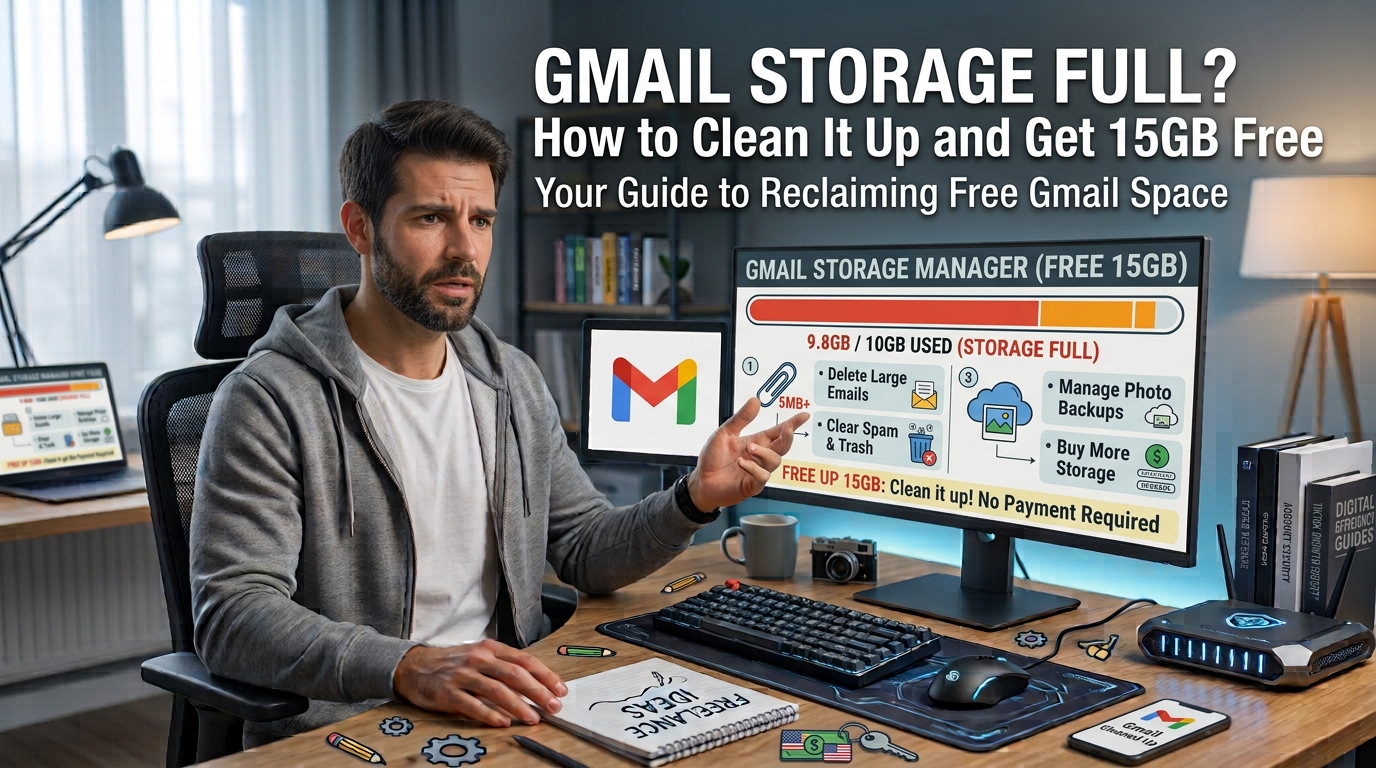
Receiving that sudden red warning banner at the top of your inbox reading “Storage full – you may not be able to send or receive emails” can instantly spark a wave of panic. I remember the exact moment it happened to me right in the middle of a busy workday: an urgent email failed to arrive because my free 15GB cap had quietly run out after years of accumulated digital clutter.
The immediate impulse for many people is to hit the upgrade button and pay a monthly subscription for extra space. However, before you open your wallet, it helps to understand how Google’s ecosystem handles space. That 15GB allotment is shared across Gmail, Google Drive, and Google Photos. Over time, invisible digital baggage—like old newsletter attachments, hidden drive back-ups, and raw smartphone photos—silently eats away at your allowance.
In this guide, I will share the exact, practical cleanup routine I used to recover over 8GB of free space in under 30 minutes without losing a single important email or memory.
1. Finding and Removing Hidden Storage Hogs in Gmail
Most of us assume that text-based emails take up very little space, which is generally true. The real culprits filling up your inbox are hidden attachments, promotional blasts with heavy embedded graphics, and old PDF documents sent years ago that you no longer need.
Use Hidden Search Filters to Spot Massive Emails
Instead of manually scrolling through thousands of old messages, you can use Gmail’s built-in search operators to isolate the largest files instantly.
-
Search by size: Type
size:10minto the search bar to show every email larger than 10 megabytes. You can adjust this tosize:5morsize:20mdepending on your needs. -
Search by age: Combine size with age filters, such as
has:attachment larger:10m older_than:2y, to pinpoint massive files sent more than two years ago. -
Review before deleting: Skim through the list to keep any critical legal or tax documents, select the rest in bulk, and move them directly to the Trash.
Target Unnecessary Promotional Spam and Newsletters
E-commerce receipts, promotional updates, and weekly newsletters accumulate rapidly over time.
-
Search for terms like
unsubscribeorlabel:promotionsto gather marketing emails into one view. -
Use the search string
category:promotions older_than:1yto pull up commercial emails over a year old that serve no long-term value. -
Select the entire category view and delete them in one sweep to free up thousands of small files that collectively take up hundreds of megabytes.
2. Clearing Space in Google Drive
Because Google Drive shares your 15GB limit, large zip files, forgotten video exports, or old PDFs stored in your drive can starve your Gmail of necessary room. Cleaning up Drive often yields the biggest immediate space recovery.
Sort Files by Size Across Your Entire Drive
Google Drive allows you to sort your files strictly by file size, instantly bringing the heaviest items to the top of your screen.
-
Open Google Drive on a desktop browser and click on Storage on the left-hand navigation menu.
-
Click on Storage used at the top of the column to sort your files from largest to smallest.
-
Look closely at the top 10 to 20 items. You will often find old screen recordings, uncompressed video clips, or large presentation decks that you can safely download to a local hard drive or delete entirely.
Don’t Forget the Hidden App Data and Shared Files
When apps connect to your Google account, they sometimes store invisible backup files in the background.
-
Click the gear icon in the top right corner of Google Drive and select Settings > Manage Apps.
-
Scroll through the list and check for apps showing “Hidden app data.” Click Options > Delete hidden app data to clear unused application caches.
-
Review the “Shared with me” tab to ensure you aren’t hosting heavy shared items that have been added to your drive space.
3. Reclaiming Gigabytes from Google Photos
High-resolution smartphone cameras make it effortless to capture thousands of memories, but uploading uncompressed photos and videos will drain your 15GB free limit faster than anything else.
Convert “Original Quality” Uploads to “Storage Saver”
If you previously backed up media in “Original Quality,” individual photos can take up 5MB to 15MB each, while short videos can take up hundreds of megabytes.
-
Open Google Photos on a computer and navigate to the Settings menu.
-
Locate the option labeled Recover storage or Convert existing photos and videos to Storage Saver.
-
Confirming this action compresses your existing original-quality photos down to high-quality compressed versions (16MP for photos, 1080p for videos). This single click can often free up several gigabytes of space instantly without noticeably degrading everyday photo quality.
Delete Unintended Video Clips and Screenshots
Videos are the primary reason Google Photos fills up unexpectedly.
-
Use the Google Photos search bar to filter strictly by file type by typing
VideosorScreenshots. -
Delete accidental screen recordings, out-of-focus video clips, or temporary screenshots of receipts and grocery lists that you no longer need to archive.
4. The Crucial Final Step: Emptying the Trash Bins
One of the most common mistakes people make when trying to fix a full Gmail warning is deleting thousands of items and wondering why the storage alert won’t go away. Google holds deleted items in various trash folders for 30 days before permanently purging them.
Permanently Clear Gmail Trash and Spam
-
Navigate to your Gmail side menu, click More, and open the Trash folder.
-
Click Empty Trash now at the top of the window.
-
Repeat the exact same step for the Spam folder to release that space back into your account.
Clear Drive and Photos Trash Bins
-
In Google Drive, click Bin (or Trash) on the left menu and select Empty bin.
-
In Google Photos, open the Trash tab on the left navigation bar and click Empty trash.
-
Once all three trash locations are cleared, refresh your main Google Account Storage page to verify that your available space has updated.
5. Setting Up a Smart Prevention Strategy
Once you have reclaimed your 15GB allowance, adopting a few simple digital maintenance habits can prevent your inbox from ever filling up again.
Automated Filters and Unsubscribing
-
Spend two minutes unsubscribing from store newsletters you never read using the “Unsubscribe” button next to the sender’s email address.
-
Create a filter for recurring notifications (like social media alerts or daily deal digests) that automatically deletes them after a set period.
Use Local or Alternative Cloud Backups for Large Files
-
Store massive personal video files, raw photography folders, or local system backups on an external hard drive rather than uploading them directly to your main primary Google Drive account.
-
Consider using secondary free cloud services strictly for archiving large static files, keeping your main Google account dedicated to emails and daily work documents.
Summary Checklist to Free Up Your Google Storage
| Action Item | Recommended Frequency | Potential Space Saved |
Search size:10m in Gmail |
Every 6 months | 1GB – 4GB |
| Clear Gmail Spam & Trash | Monthly | 200MB – 1GB |
| Sort Google Drive by File Size | Every 3 months | 2GB – 8GB |
| Convert Photos to Storage Saver | One-time action | 3GB – 10GB |
| Delete Video Clips & Screenshots | Monthly | 500MB – 2GB |
Frequently Asked Questions (FAQs)
Why is my storage still full after deleting thousands of emails?
Deleting emails simply moves them to the Gmail Trash folder, where they continue to consume your 15GB storage quota for 30 days. To free up the space immediately, you must open the Trash folder and click Empty Trash now. Additionally, check if large files in Google Drive or Google Photos are taking up the majority of your space instead of Gmail.
Will converting photos to “Storage Saver” ruin their quality?
For everyday personal viewing, social media sharing, and standard photo prints, the quality difference is virtually unnoticeable. “Storage Saver” reduces photo resolutions above 16 megapixels down to 16MP and compresses videos to 1080p. However, if you are a professional photographer who requires original RAW files or high-resolution originals for large-scale printing, you should back up those specific files to an external hard drive first.
Does deleting an email with a large attachment remove the file from Google Drive too?
No. Gmail and Google Drive manage their files separately. If someone emailed you a file as a direct attachment, deleting that email removes the file from Gmail. However, if someone sent you a Google Drive link inside an email, deleting the email does not delete the actual file stored inside your Google Drive. You must manage Drive files directly through the Google Drive interface.
How can I tell which service is using the most storage?
You can view a complete breakdown of your account usage by visiting [one.google.com/storage](https://one.google.com/storage) while logged into your Google account. This page displays a clean visual chart showing exactly how many gigabytes are being consumed individually by Gmail, Google Drive, and Google Photos, helping you focus your cleanup efforts where they matter most.
What happens to incoming emails while my storage is 100% full?
When your storage is completely exhausted, any email sent to you will bounce back to the sender with an error message stating that the recipient’s mailbox is full. These bounced emails are not queued or saved; once you clear space in your account, those missed emails will not automatically arrive. The senders will need to resend their messages after your storage drops below the 15GB limit.